Creating Backup from Volume
Images & Backups
byAlmas
- Step 1: Navigate to the Volumes Section
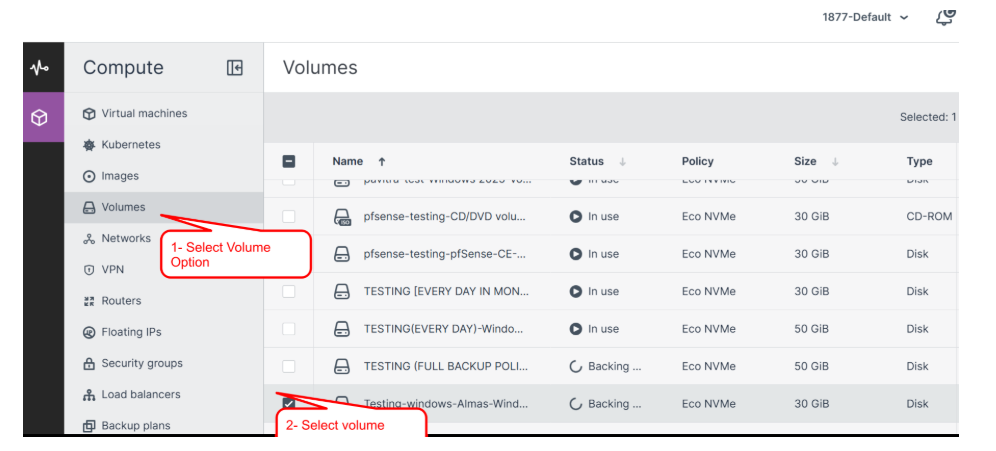
Log in to your Cantech Cloud account. - In the left-hand menu, click on “Volumes” under the Compute section.
You will see a list of volumes, as shown in the image.
Step 2: Select the Volume for Backup - Identify the volume you want to back up. For example, in the image, the volume “Testing-Windows” is selected.
- Click on the three-dot menu next to the selected volume.
- From the dropdown menu, choose “Create backup now”.
Step 3: Backup Creation Process
Once you select the “Create backup now” option, a progress notification will appear in the bottom-right corner, indicating that the backup process has started.
Wait for the process to complete. The system ensures that the data is securely backed up.
Step 4: Click on “Recovery Points” to view all available recovery points for restoration.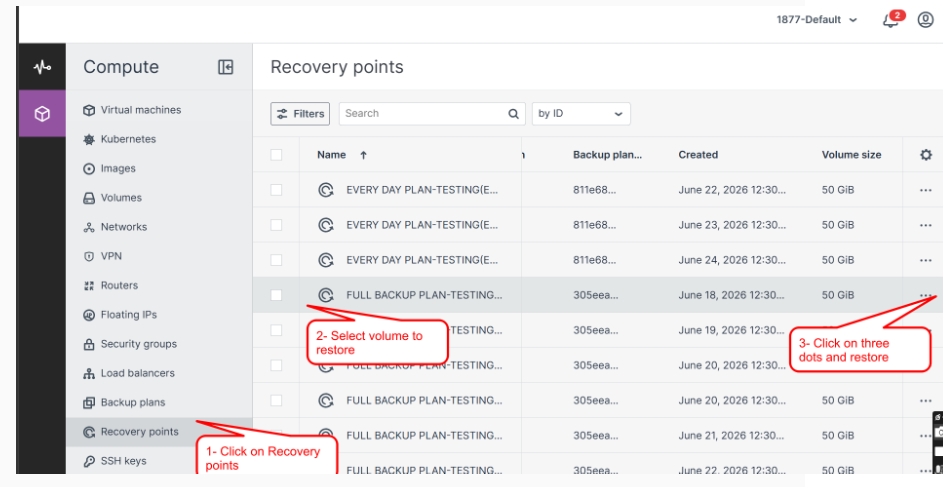
Step 5 : When you click on “Restore Volume,” you will need to create a new volume, choose the storage policy, and then click “Restore.”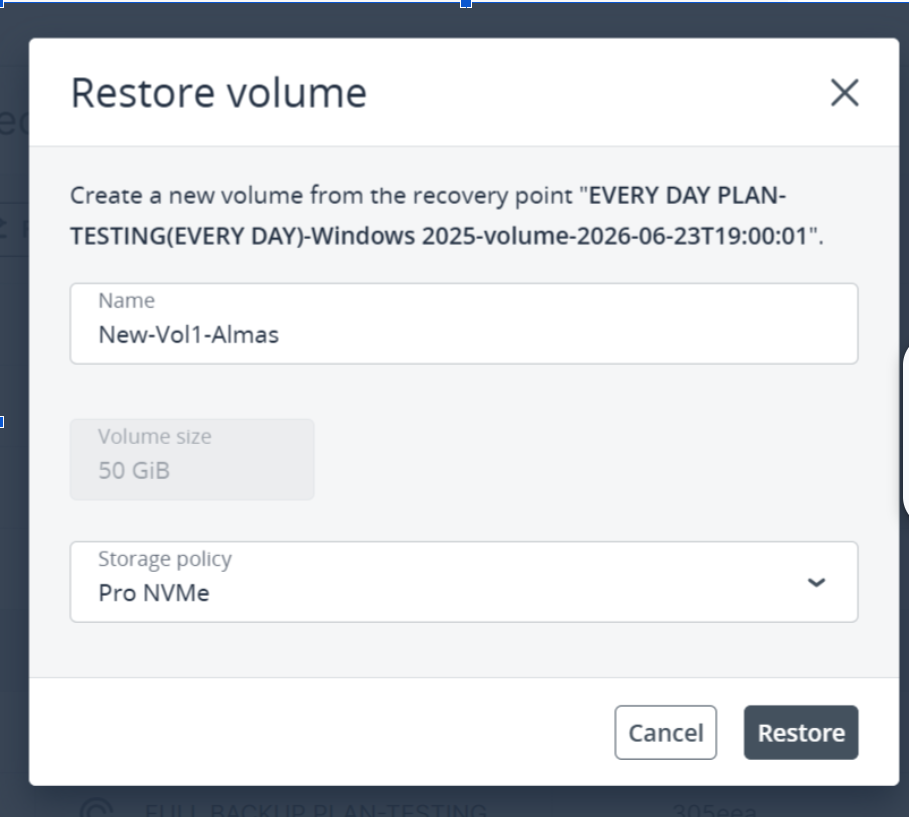
- After restoration go into the volume section you will see new volume has been restored there.
- After restoration go into the volume section you will see new volume has been restored there.