Creating volumes
Images & Backups
byAlmas
- On the Volumes screen select region and, click Create volume.
- In the Create volume window, specify a volume name and size in gigabytes, and select a storage policy, You can choose Default or General Purpose and then click Create.
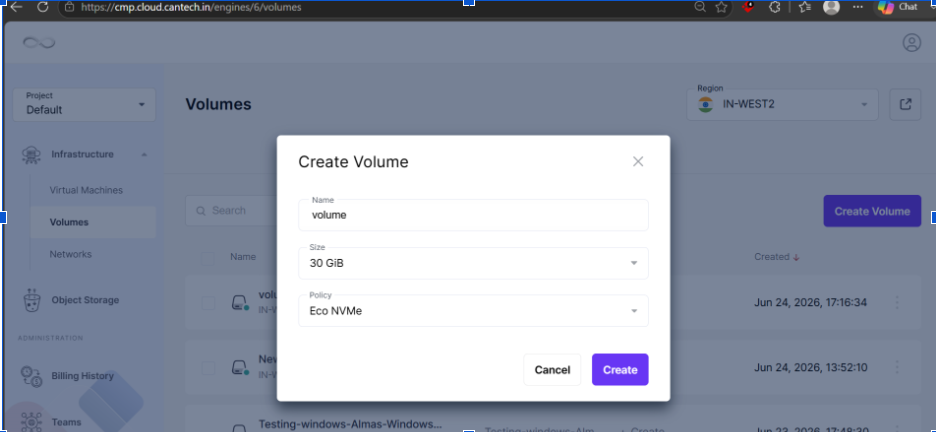 The volume has been created and can be viewed on the Volume screen.
 - If you want to customize your volume size you can go to the advanced dashboard and then create a new volume of the required size and attach it to virtual machine
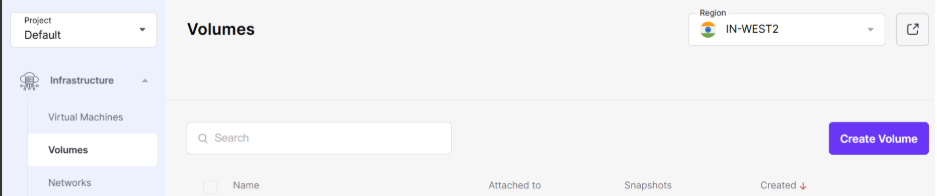 Once the volume is created, you can attach it to your existing VM.
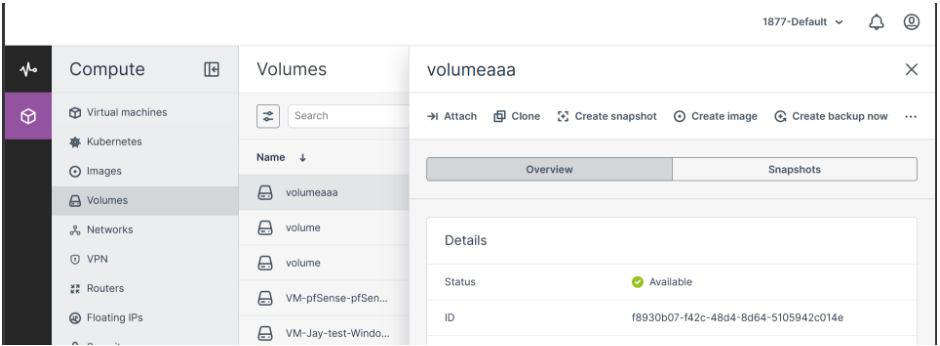
To attaching Volume to Virtual Machine >> Go into Compute section >> Volumes >> click on left side three dots >> Click on attach >> Select your vm name to attach
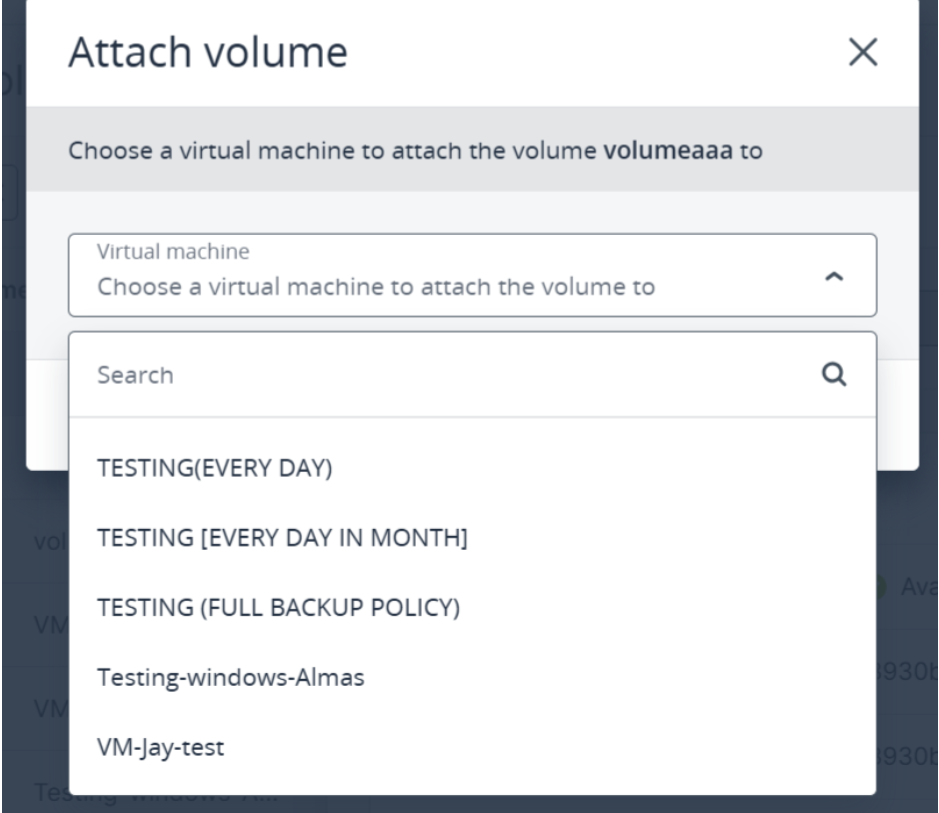
- You will see notification volume has been attached.