How to Change Flavor of an Existing Virtual Machine?
Introduction
A VM flavor defines the compute resources assigned to a virtual machine, such as vCPUs, RAM, and storage specifications. If your workload requirements change, you can switch to a different flavor without creating a new virtual machine.
This guide explains how to change the flavor of an existing virtual machine in CMP. You can select a suitable flavor to upgrade or downgrade the resources assigned to your VM based on your current requirements.
Step 1: Sign In to CMP
Log in to your CMP account using your credentials.
After logging in, navigate to the Virtual Machines section where all your deployed VMs are displayed.
Step 2: Locate the Target Virtual Machine
Find the virtual machine whose resources you want to modify.
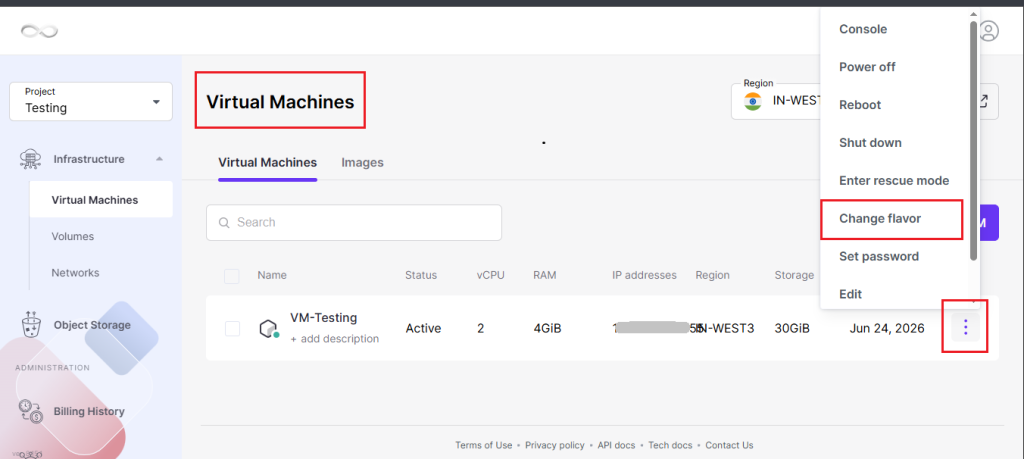
On the right side of the VM entry, click the three-dot (⋮) action menu to view the available management options.
Step 3: Select “Change Flavor”
From the list of available actions, click Change Flavor.
This will open the flavor selection window, displaying all available VM configurations.
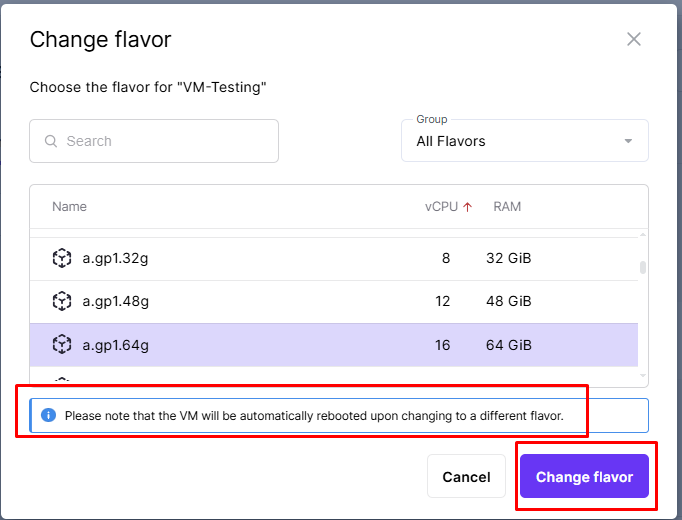
Step 4: Choose a Suitable Flavor
Review the available flavor options and select the configuration that best matches your requirements.
- You can choose to upgrade (increase resources) or downgrade (decrease resources) based on your current requirements.
Verify the selected configuration before proceeding.
Step 5: Confirm the Flavor Change
After selecting the desired flavor, click the Change Flavor button to submit the request.
CMP will begin applying the new resource configuration to the VM.
Step 6: Wait for the Process to Complete
The CMP platform will update the VM configuration automatically.
Once the operation is finished, the updated flavor information will be visible in the VM details section of the dashboard.
Important Notes:
- No data loss: Changing the flavor does not affect the data or configuration inside the VM.
- Downtime: A short reboot may occur while the flavor is being applied.
Conclusion
Changing the flavor of an existing virtual machine in CMP allows you to adjust the VM’s compute resources according to your workload requirements. You can upgrade or downgrade the available flavor without creating a new virtual machine.
Follow the steps in this guide to select the required flavor, confirm the change, and verify the updated flavor information from the VM details section.
Frequently Asked Questions
1. What is a VM flavor?
A VM flavor defines the compute resources assigned to a virtual machine, such as vCPUs, RAM, and storage specifications.
2. How do I change the flavor of an existing virtual machine in CMP?
Log in to CMP, navigate to Virtual Machines, locate the required VM, open the three-dot (⋮) action menu, and select Change Flavor.
3. Can I upgrade the resources of an existing VM?
Yes. You can select a higher flavor to increase the resources assigned to the virtual machine based on your requirements.
4. Can I downgrade the resources of an existing VM?
Yes. You can select a lower flavor to decrease the resources assigned to the virtual machine based on your requirements.
5. Where can I find the Change Flavor option?
The Change Flavor option is available in the three-dot (⋮) action menu on the right side of the required virtual machine entry.
6. Will changing the VM flavor cause data loss?
No. According to the source procedure, changing the flavor does not affect the data or configuration inside the VM.
7. Can there be downtime when changing the VM flavor?
Yes. A short reboot may occur while the new flavor is being applied.
8. How can I verify that the flavor has been changed?
Once the operation is complete, the updated flavor information will be visible in the VM details section of the CMP dashboard.