How to Install and Secure OpenClaw (Moltbot) on a Cloud Server
1. Overview
This guide explains how to deploy and secure OpenClaw (Moltbot) on a Cloud Virtual Machine.
By following this guide, you will:
- Choose the appropriate Cloud plan.
- Create a Virtual Machine.
- Install OpenClaw.
- Connect messaging channels.
- Secure the installation for production use.
2. System Requirements
| Requirement | Minimum | Recommended |
|---|---|---|
| CPU | 1 vCPU | 2 vCPU |
| Memory (RAM) | 1 GB | 4–8 GB |
| Storage | 500 MB | 20–30 GB |
| Operating System | Linux (any) | Ubuntu 22.04 or 24.04 LTS |
| Runtime | Node.js 22+ | Node.js 22 LTS |
| Network | Public IPv4 | Public IPv4 + Firewall |
3. Create the Virtual Machine
- Log in to the Cloud dashboard.
- Navigate to Compute → Create VM.
- Select the required plan.
- Choose Ubuntu 22.04 LTS or Ubuntu 24.04 LTS.
- Add an SSH key or configure a root password.
- Create the Virtual Machine.
- Note the public IP address after deployment.
4. Install OpenClaw
Step 1: Update the System
sudo apt update && sudo apt upgrade -y
curl -fsSL https://deb.nodesource.com/setup_24.x | sudo -E bash – && sudo apt install -y nodejs
Step 2: Configure Corepack
corepack enable
corepack prepare pnpm@latest –activate
pnpm setup
source ~/.bashrc
Step 3: Install npm
npm install -g npm@11.8.0
Verify the installation:
node –version
npm –version
Step 4: Install Docker
curl -fsSL https://get.docker.com | sudo sh
sudo usermod -aG docker $USER
Verify Docker:
docker –versionStep 5: Install OpenClaw
curl -fsSL https://openclaw.ai/install.sh | bashVerify the installation:
openclaw –version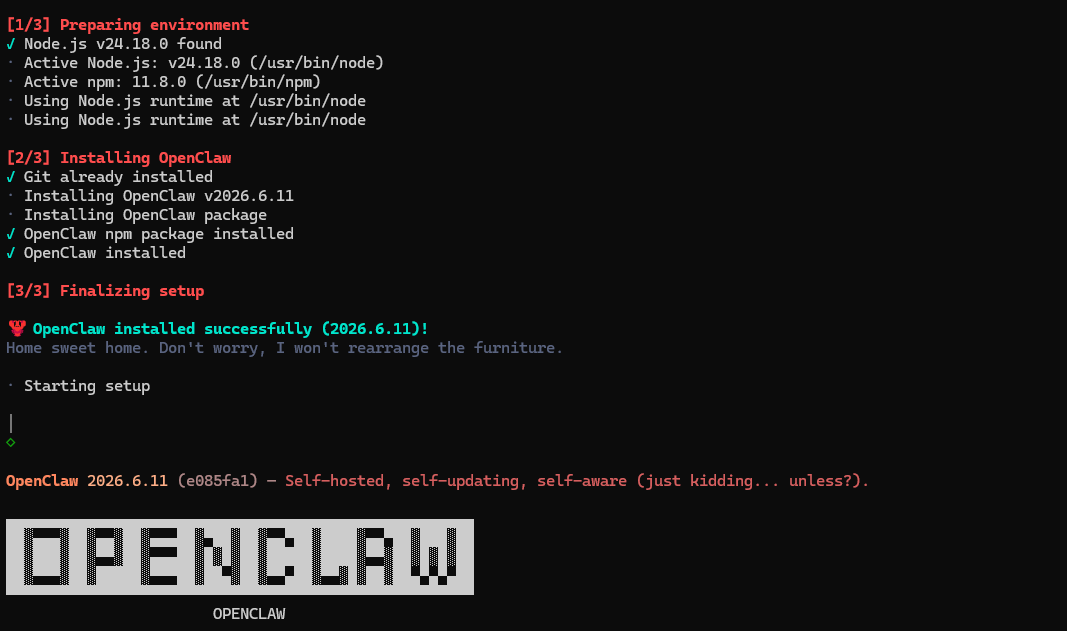
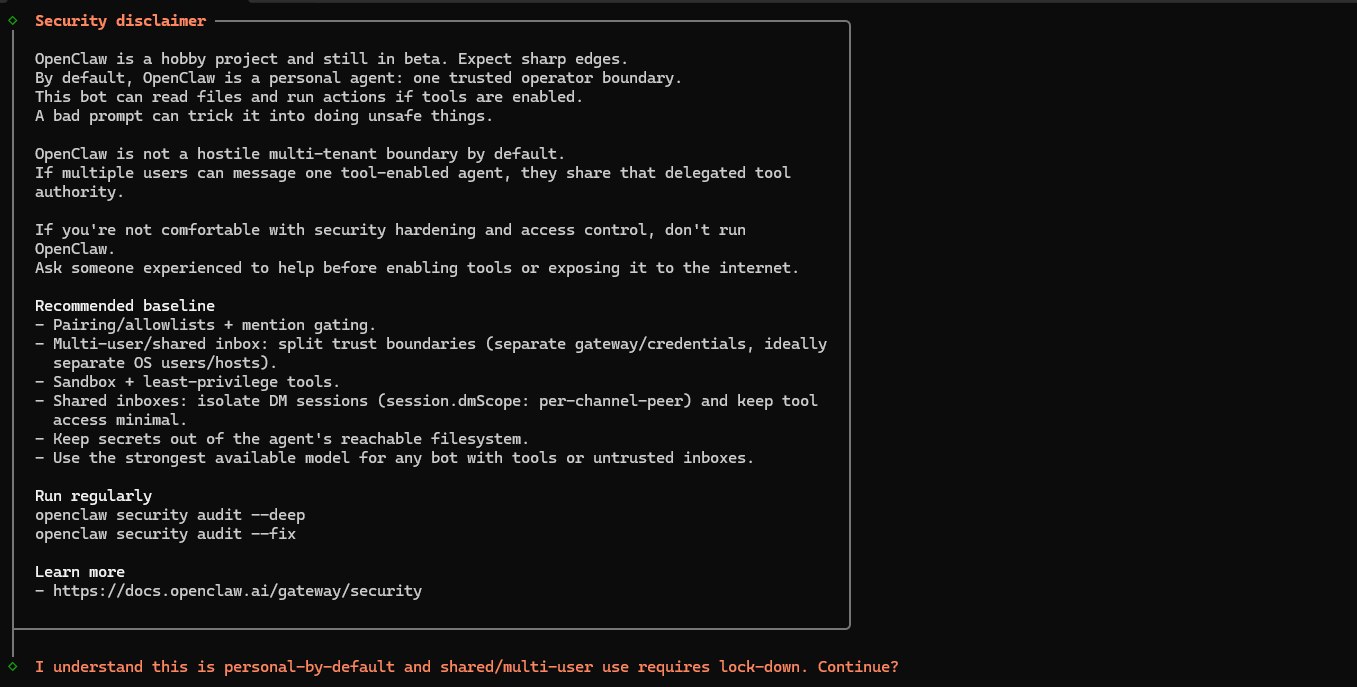
Step 6: Run the Initial Configuration
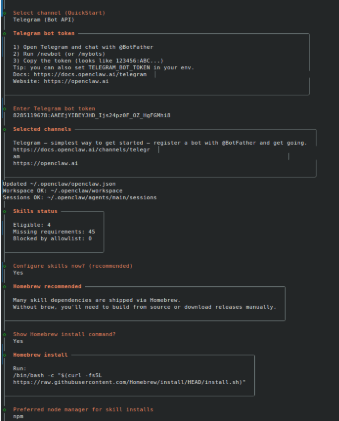
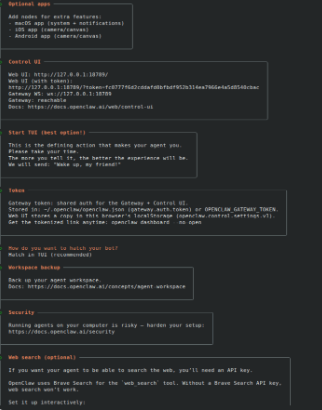
openclaw onboard
Follow the prompts to configure:
- AI provider
- API key
- Basic settings
6. Connect Communication Channels
Telegram
- Open Telegram.
- Search for @BotFather.
- Run /newbot.
- Copy the bot token.
- Paste the token when prompted by OpenClaw.
Run:
openclaw channels login whatsappA QR code is displayed.
Open WhatsApp on your phone:
Linked Devices → Link a Device
Scan the QR code to complete the connection.
Configure the allowed users:
channels:
whatsapp:
allowFrom:
– “+91XXXXXXXXXX”
– “+91XXXXXXXXXX”
Slack
Create a Slack application.
Enable Socket Mode.
Configure the required Bot Token and App Token.
Add the tokens to the configuration:
channels:
slack:
botToken: “xoxb-your-bot-token-here”
appToken: “xapp-your-app-token-here”
Gmail
Configure Gmail by:
- Creating a Google Cloud project.
- Enabling the Gmail API.
- Enabling the Pub/Sub API.
- Creating a Service Account.
- Creating a Pub/Sub topic and subscription.
- Adding the credentials path to the OpenClaw configuration.
7. Secure the Installation
Enable Docker Sandboxing
Configure:
agents:
defaults:
sandbox:
mode: “non-main”
Configure the Cloud Firewall
Create firewall rules to:
- Allow SSH only from trusted IP addresses.
- Block the gateway port from public access.
- Deny all other inbound traffic by default.
Configure UFW
sudo ufw default deny incoming
sudo ufw default allow outgoing
sudo ufw allow ssh
sudo ufw enable
sudo ufw status
Access the Dashboard
Create an SSH tunnel:
ssh -L 18789:localhost:18789 moltbot-user@your-server-ipOpen:
http://localhost:18789/
If a gateway token is required, run:
openclaw dashboard –no-openUse the generated URL to access the dashboard.
Configure Allowed Users
Example:
channels:
whatsapp:
allowFrom:
– “+91XXXXXXXXXX”
slack:
allowUsers:
– “U01XXXXXXXX”
Enable Automated Backups
Open the Cloud dashboard.
Navigate to:
Virtual Machine → Backups
Enable automated backups.
Run the Health Check
moltbot doctor8. Run OpenClaw as a Service
Create the systemd service:
sudo tee /etc/systemd/system/openclaw.serviceReload systemd:
sudo systemctl daemon-reexec
sudo systemctl daemon-reload
Enable and start the service:
sudo systemctl enable openclaw
sudo systemctl start openclaw
Verify the service:
sudo systemctl status openclawView the logs:
journalctl -u openclaw -f9. Troubleshooting
WhatsApp QR Code Does Not Appear
Verify that Node.js 22 or later is installed.
node –versionSlack Bot Does Not Respond
Verify that:
- Socket Mode is enabled.
- Bot Token and App Token are configured correctly.
High Memory Usage
If multiple communication channels are enabled with browser automation, consider upgrading the Virtual Machine to a larger plan.
Health Check Shows Warnings
Run:
moltbot doctorReview each warning and apply the recommended corrections.