How to Resizing Volumes in CMP?
Introduction
Resizing volumes in CMP allows you to increase the storage capacity assigned to a virtual machine without replacing the existing volume. Volume expansion can be performed for both running and stopped virtual machines, allowing storage capacity to be increased according to workload requirements.
Online volume resizing can be performed while the VM is running, which helps avoid downtime when additional storage capacity is required. However, increasing the volume size from the CMP dashboard does not automatically expand the partition or filesystem inside the guest operating system. Additional operating-system-level steps may therefore be required to make the newly allocated space available to applications.
This guide explains how to extend a volume from the CMP dashboard and provides the required steps for Linux and Windows virtual machines.
Volume Resizing
A volume can only be increased in size. Reducing an existing volume is not supported.
Important Notes
- Volumes can only be extended; they cannot be shrunk.
- Increasing the volume size from the CMP dashboard does not automatically extend the filesystem inside the guest operating system.
- The guest operating system may require additional steps to use the newly available space.
- Volume resizing can be performed for both running and stopped virtual machines.
- If a volume is reverted to a snapshot that was created before the volume was extended, the increased volume size is retained.
Extend a Volume from the CMP Dashboard
Follow these steps to increase the size of an existing volume.
Step 1: Log in to the CMP Dashboard
Log in to your CMP Dashboard using your account credentials.
Step 2: Open the Volumes Section
Navigate to Volumes and select the volume that you want to extend.
Step 3: Select Extend
Click the three-dot menu associated with the volume and select Extend.
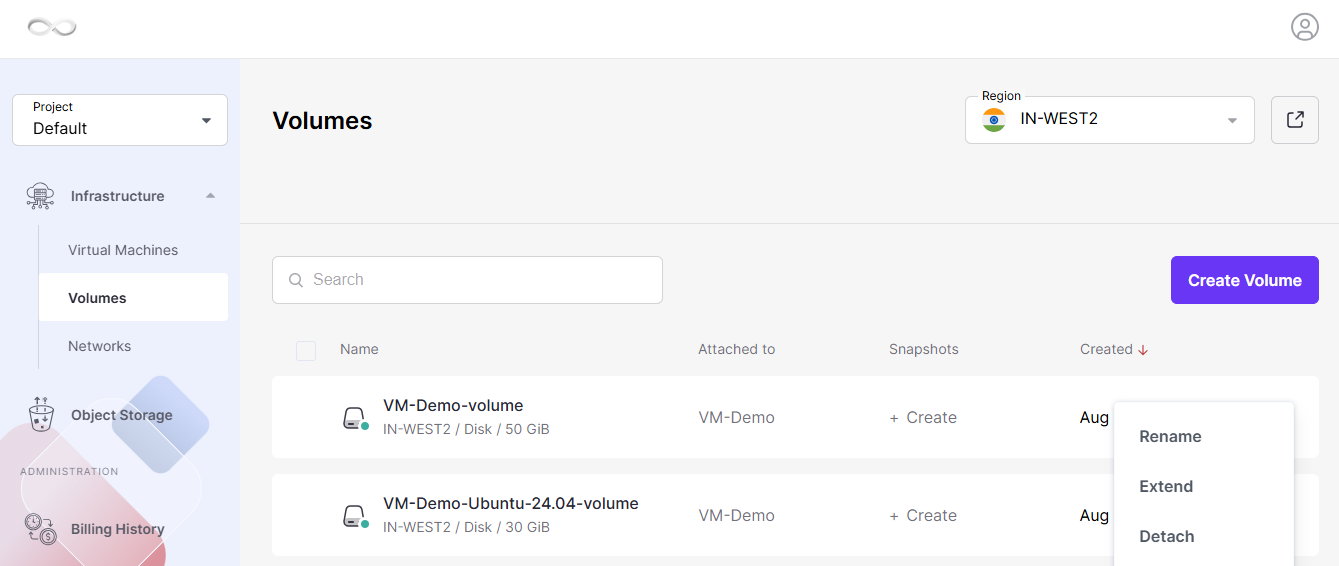
Step 4: Select the New Volume Size
Select the required volume size and click Extend.
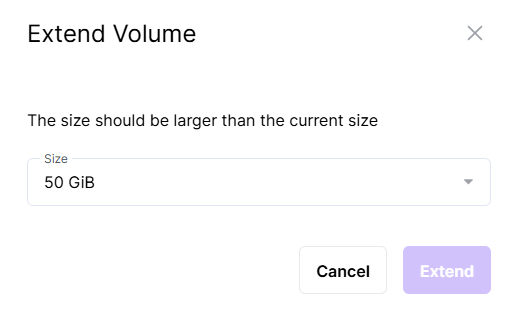
Once the operation is completed, the volume is resized successfully.
Note: Extending the volume from the CMP Dashboard increases the virtual disk capacity. The filesystem inside the VM may still need to be expanded before the operating system can use the additional space.
Expand a Volume on a Linux Virtual Machine
After increasing the volume size from the CMP Dashboard, additional steps may be required inside the Linux VM to make the new capacity available.
The Linux procedure involves checking the current disk layout, extending the required partition, and resizing the filesystem.
To know more about “How to Expand a Volume on a Linux Virtual Machine”. Click Here for more details.
Extend a Basic Volume on a Windows VM
On a Windows virtual machine, an existing basic volume can be extended when additional unallocated space is available on the same disk.
To know more about “How to extend a Basic Volume on a Windows VM”. Click Here for more details.
Conclusion
Resizing volumes in CMP allows you to increase VM storage capacity without replacing the existing volume. The volume can be extended from the CMP Dashboard for both running and stopped VMs, helping you scale storage according to your requirements.
After extending the volume, remember that the guest operating system may require additional steps to use the new capacity. For Linux VMs, verify the disk layout, extend the required partition, and resize the filesystem. For Windows VMs, use Disk Management to extend the volume into available adjacent unallocated space.
Following these steps ensures that the additional storage capacity is correctly made available to the virtual machine.
FAQ’s
Can I decrease the size of an existing volume?
No. Volumes can only be increased in size. Shrinking an existing volume is not supported.
Can I resize a volume while the VM is running?
Yes. Volume resizing supports both running and stopped virtual machines. Online resizing allows the volume capacity to be increased without stopping the VM.
Does resizing a volume automatically increase the filesystem size?
No. Extending the volume from the CMP Dashboard does not automatically extend the filesystem inside the guest operating system. Additional operating-system-level steps may be required.
How do I check the disk layout on Linux?
Use the following command:
lsblkThis displays the available disks and partitions so you can identify the disk and partition that need to be extended.
Which command is used to extend a Linux partition?
The source procedure uses growpart. For example:
growpart /dev/vdb 1Replace the disk and partition number with the values applicable to your VM.
Why is the new Linux storage capacity not available after extending the volume?
Increasing the virtual disk size does not automatically increase the partition and filesystem. The partition must first be extended and the filesystem must then be resized.
What are the requirements for extending a Windows volume?
The unallocated space must be directly next to the volume, there must be no other volume between them, and the unallocated space must be on the same disk.
What should I do if a newly attached Windows disk does not appear in File Explorer?
Open Disk Management and check whether the disk is offline or unallocated. A newly attached secondary disk may need to be brought online and initialized before it can be used.