How to Upgrade and Downgrade CMP NVMe Storage Tiers?
Introduction
CMP allows you to change the storage tier of supported NVMe volumes without detaching the volume, restarting the virtual machine, or causing downtime. You can switch between Standard NVMe and Pro NVMe while the volume remains attached to a running VM.
Storage policy changes are applied live, allowing you to increase storage performance when required or reduce storage costs when the additional performance is no longer needed.
Supported Live Changes
The following storage tier changes are supported:
- Standard NVMe → Pro NVMe
- Pro NVMe → Standard NVMe
These changes can be performed without downtime or data loss.
Storage Tiers
| Storage Tier | Max IOPS | Max Throughput | Storage Architecture | Live Tier Change |
| Eco NVMe | 15,000 | 500 MB/s | Erasure Coding | ❌ Not Supported |
| Standard NVMe | 25,000 | 1,000 MB/s | 3× Replication | ✅ Upgrade to Pro |
| Pro NVMe | 50,000 | 2,000 MB/s | 3× Replication | ✅ Downgrade to Standard |
Note: Eco NVMe uses a different storage architecture based on Erasure Coding. It cannot be converted to Standard NVMe or Pro NVMe through a live storage policy change. A new volume must be created and the data must be migrated manually.
Before You Begin
Before changing the storage tier, ensure that:
- You have access to the CMP Advanced Panel.
- The storage policy option is not available in the standard CMP Dashboard.
- The volume can remain attached to a running VM during the storage tier change.
- A VM reboot is not required.
- The volume does not need to be detached.
Access the Advanced Panel
To access the volume storage policy:
- Log in to the CMP Dashboard.
- Select the appropriate region.
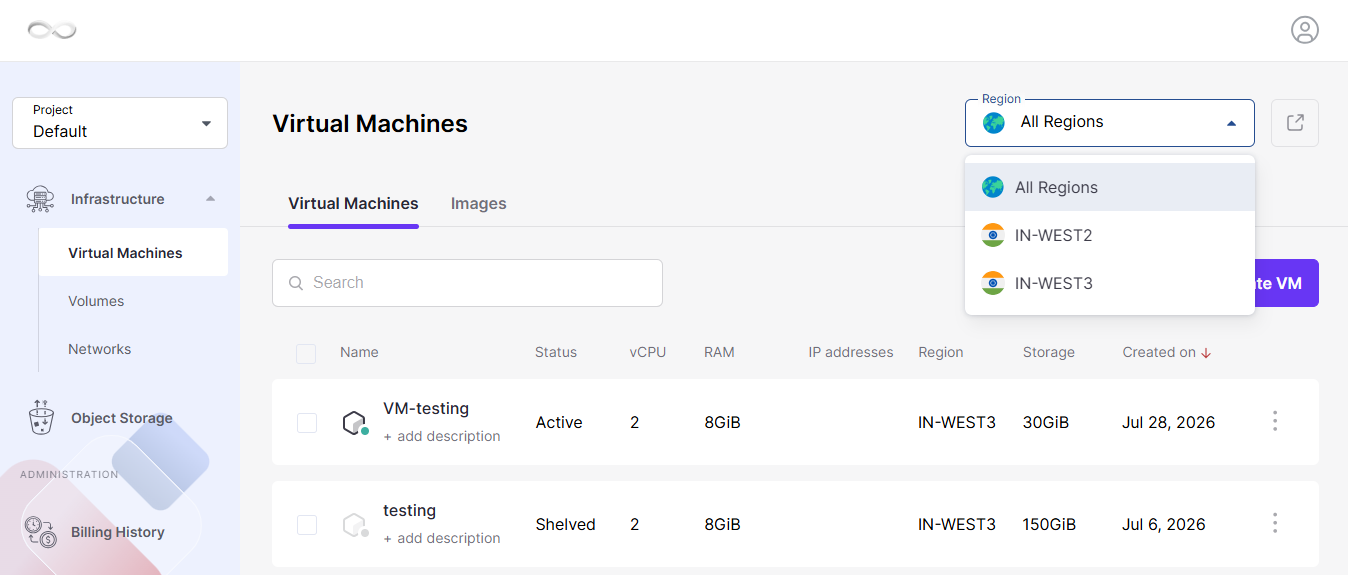
- Click the Advanced Panel (external link icon (↗) ) for your selected region.
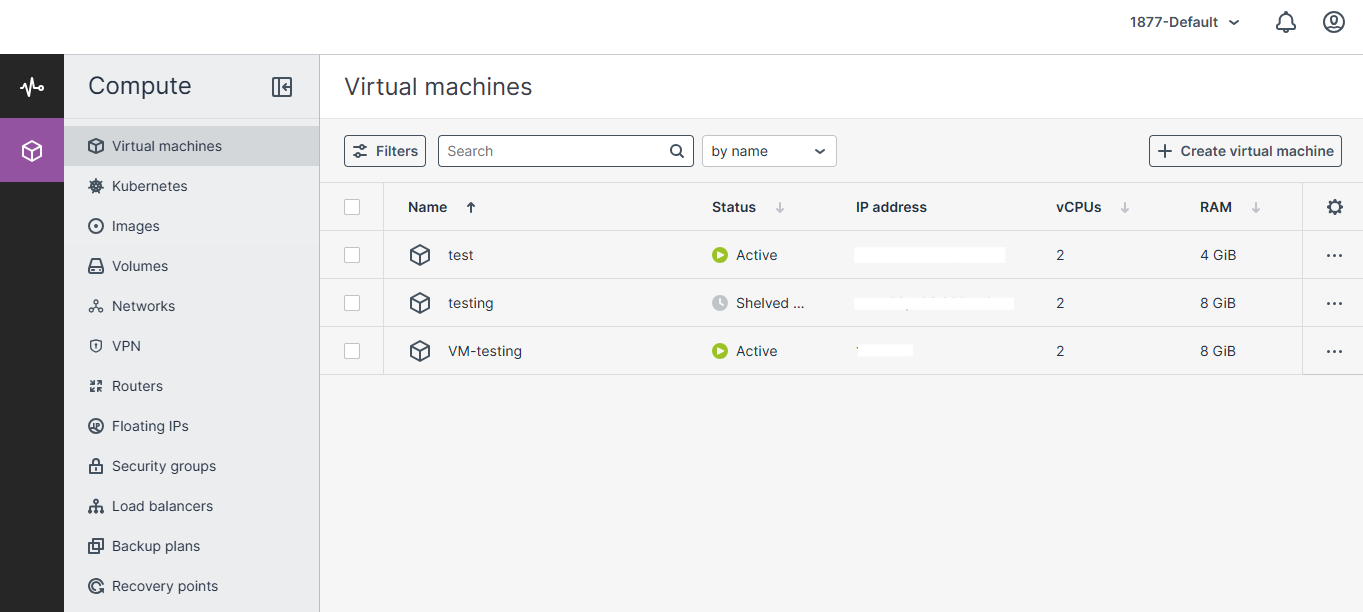
- Navigate to Volumes.
Upgrade Standard NVMe to Pro NVMe
You can upgrade a supported Standard NVMe volume to Pro NVMe while the volume remains attached to the VM.
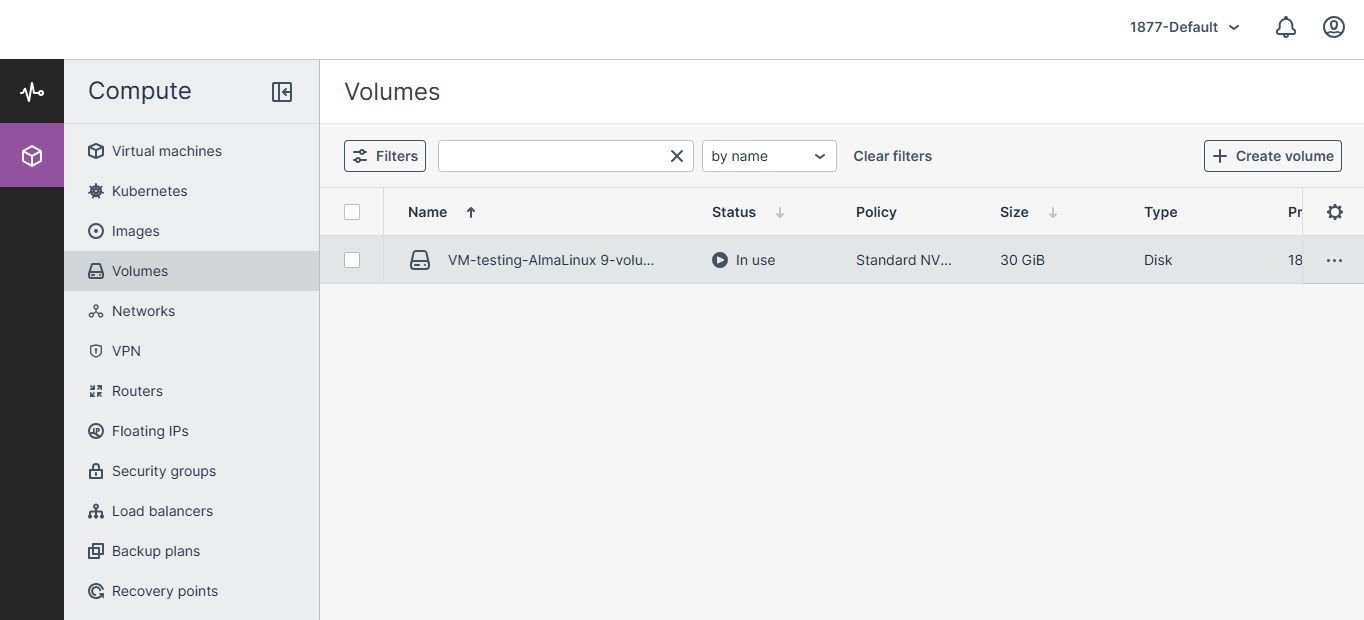
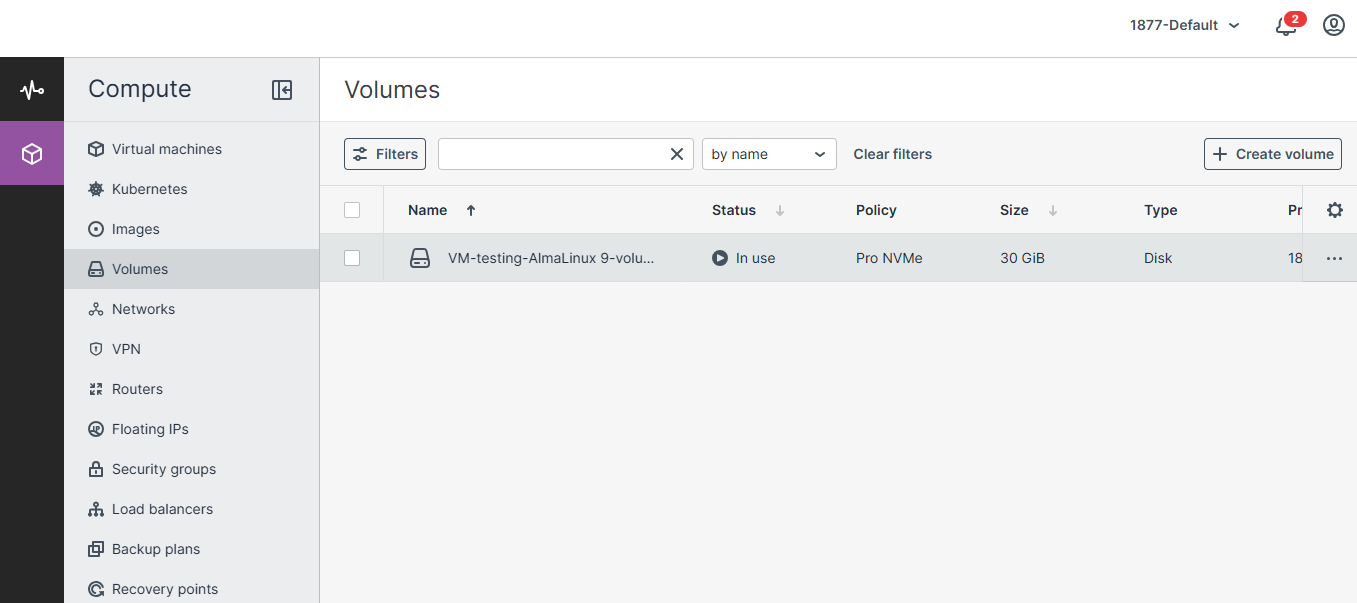
Step 1: Open Volumes
Open Volumes in the Advanced Panel.
Step 2: Select the Volume
Select the volume that you want to upgrade.
The volume details panel will open.
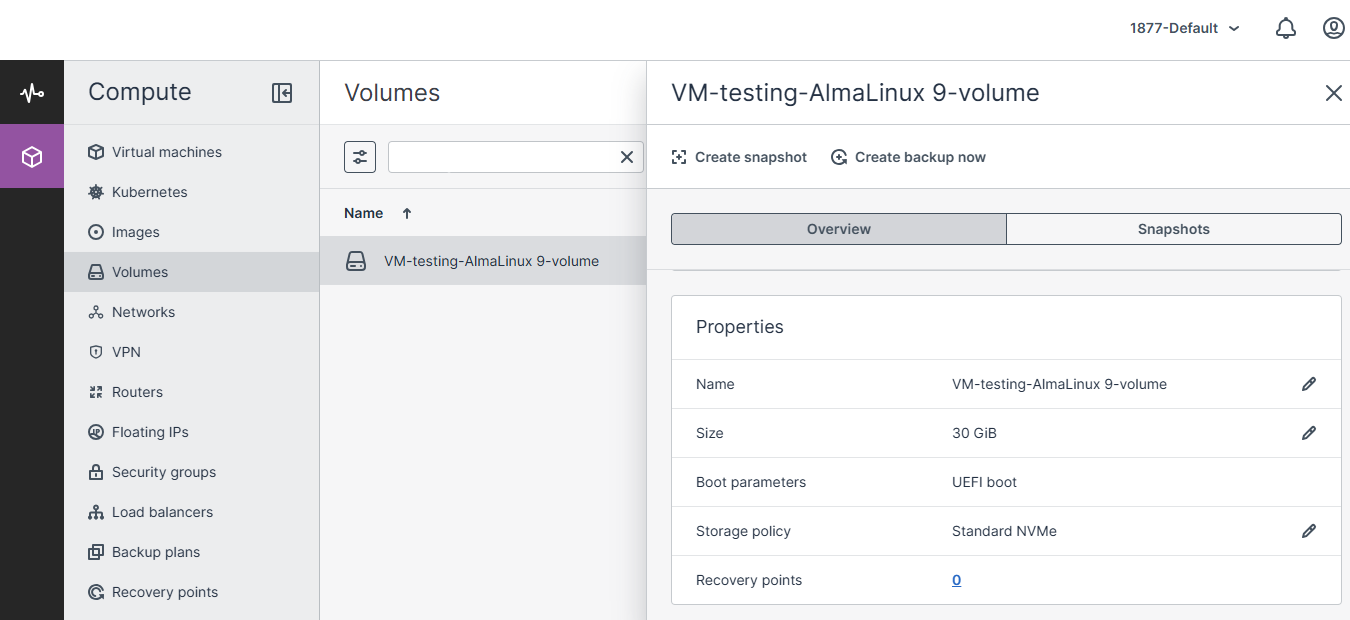
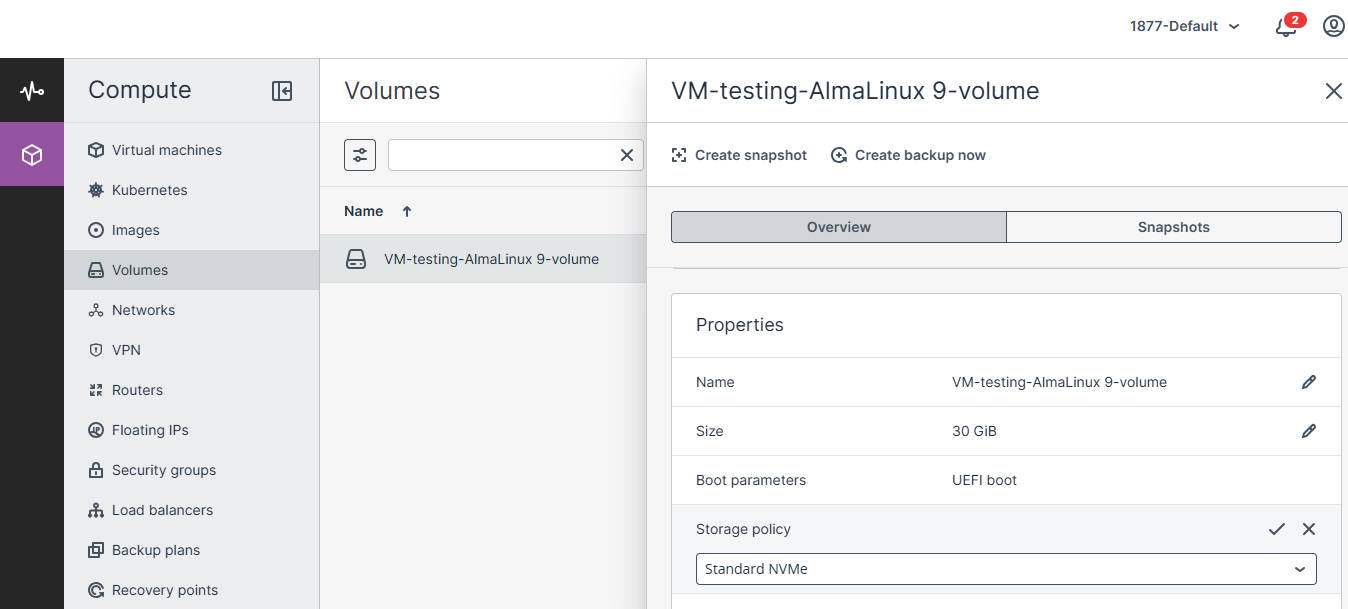
Step 3: Edit the Storage Policy
Locate Storage Policy under the volume properties.
Click the Edit (Pencil) icon.
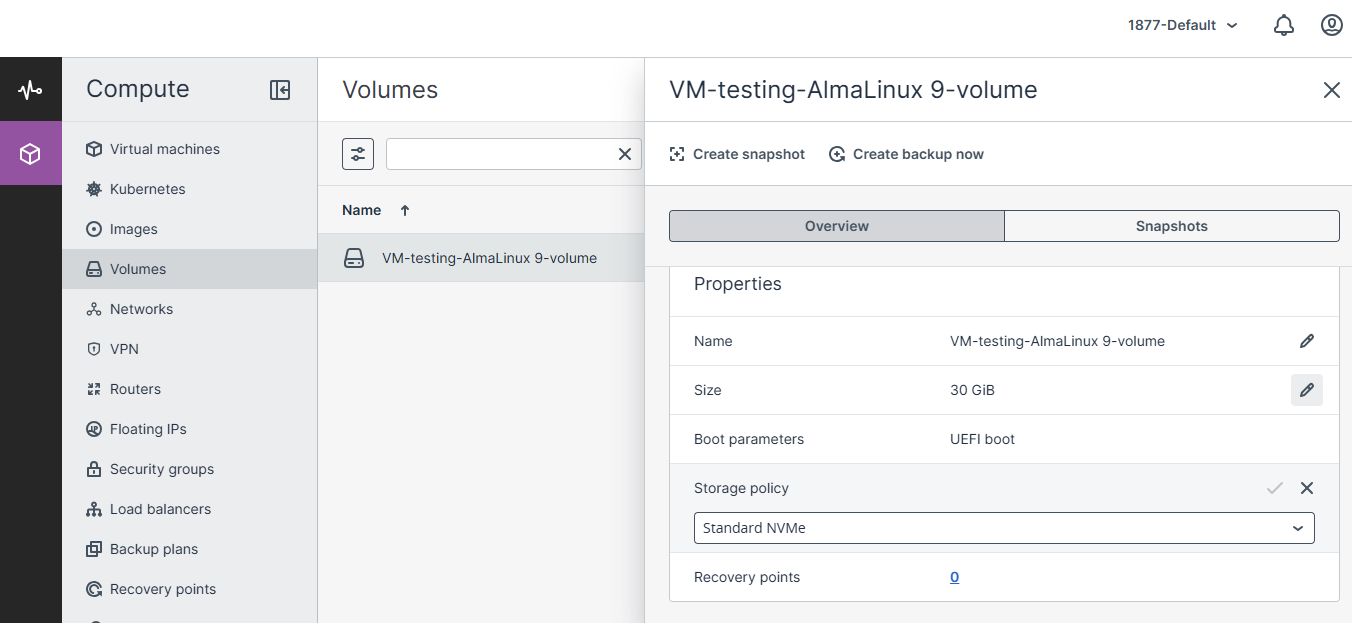
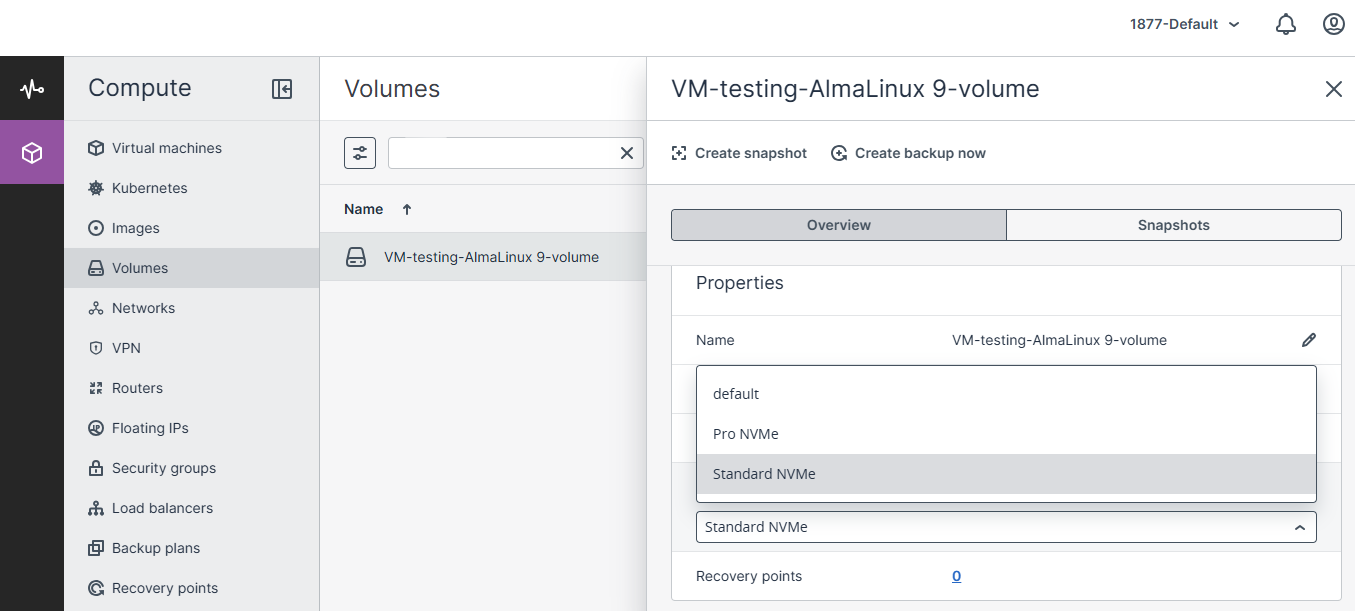
Step 4: Select Pro NVMe
From the storage policy drop-down menu, select:
Pro NVMe
Step 5: Save the Changes
Click Save (✓) to apply the new storage policy.
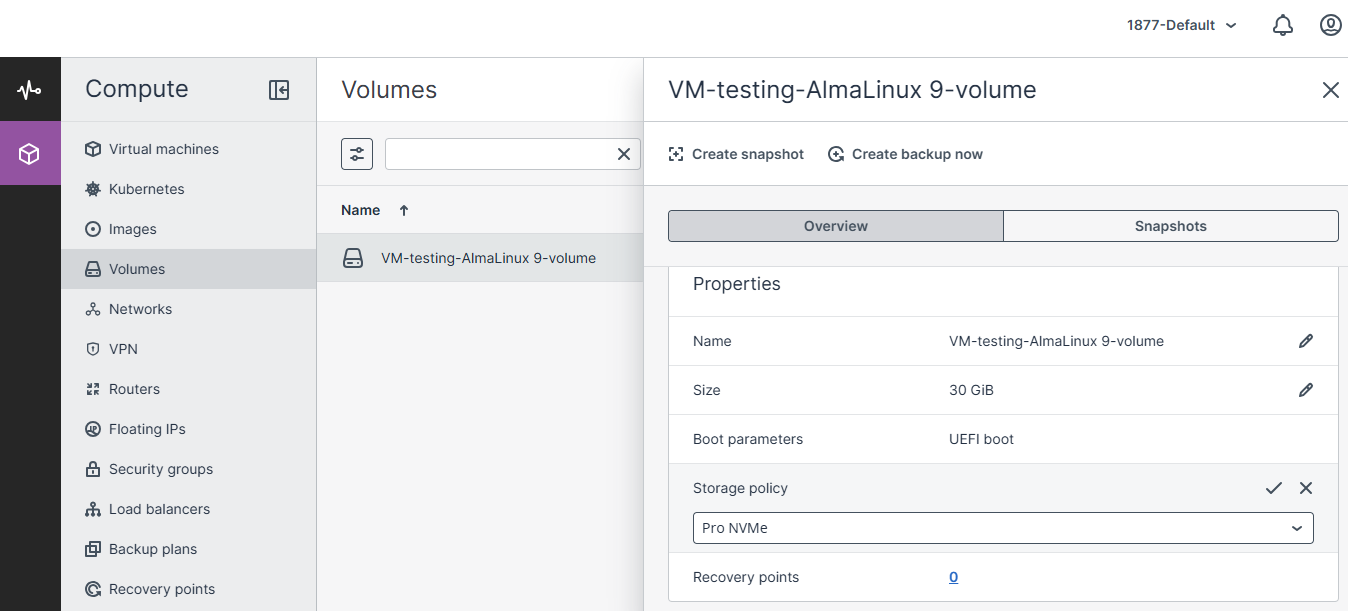
The storage policy is updated immediately.
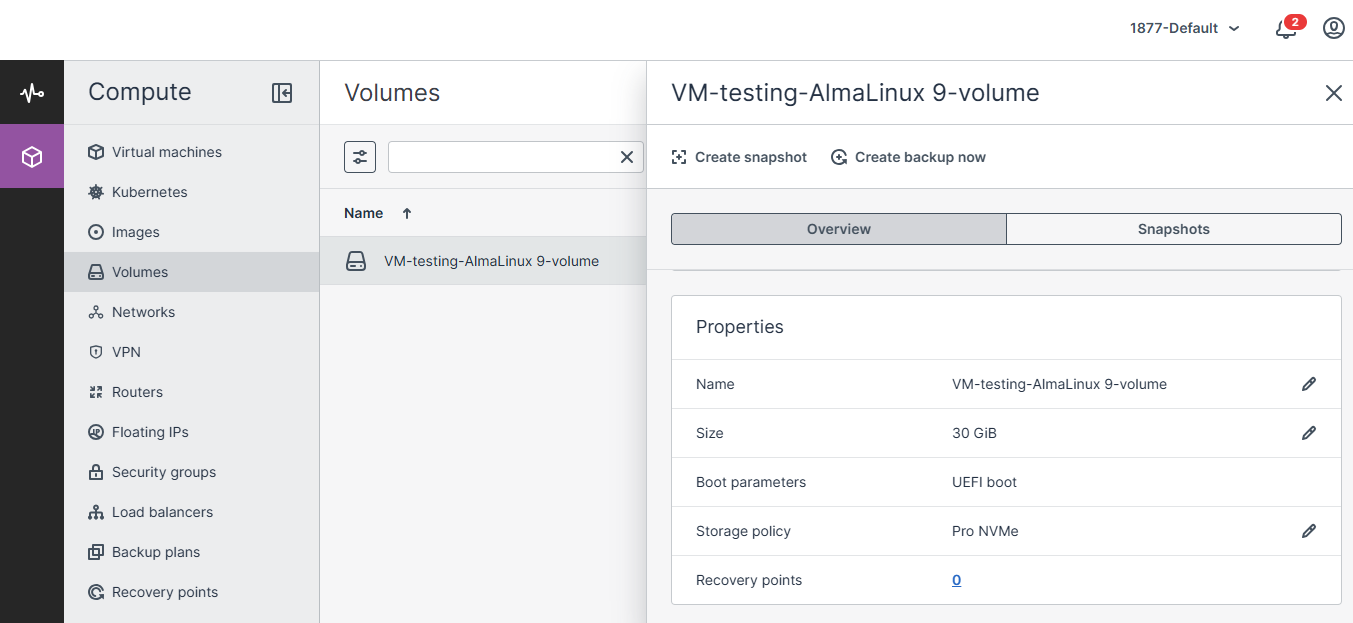
Performance after upgrade
After upgrading to Pro NVMe, the volume supports:
- Up to 50,000 IOPS
- Up to 2,000 MB/s throughput
- Zero downtime
- No interruption to the running virtual machine
Downgrade Pro NVMe to Standard NVMe
You can downgrade a supported Pro NVMe volume to Standard NVMe without restarting the VM or detaching the volume.
Step 1: Open the Volume
Open the required volume from the Volumes section of the CMP Advanced Panel.
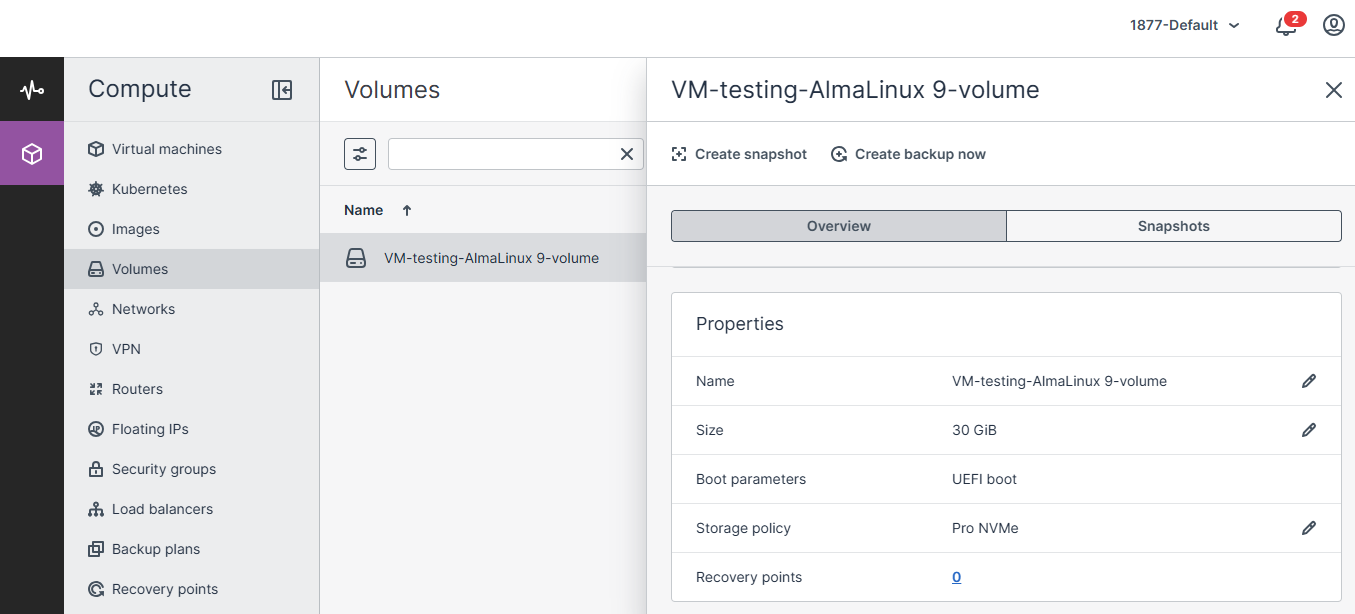
Step 2: Edit the Storage Policy
Click the Edit (Pencil) icon next to Storage Policy.
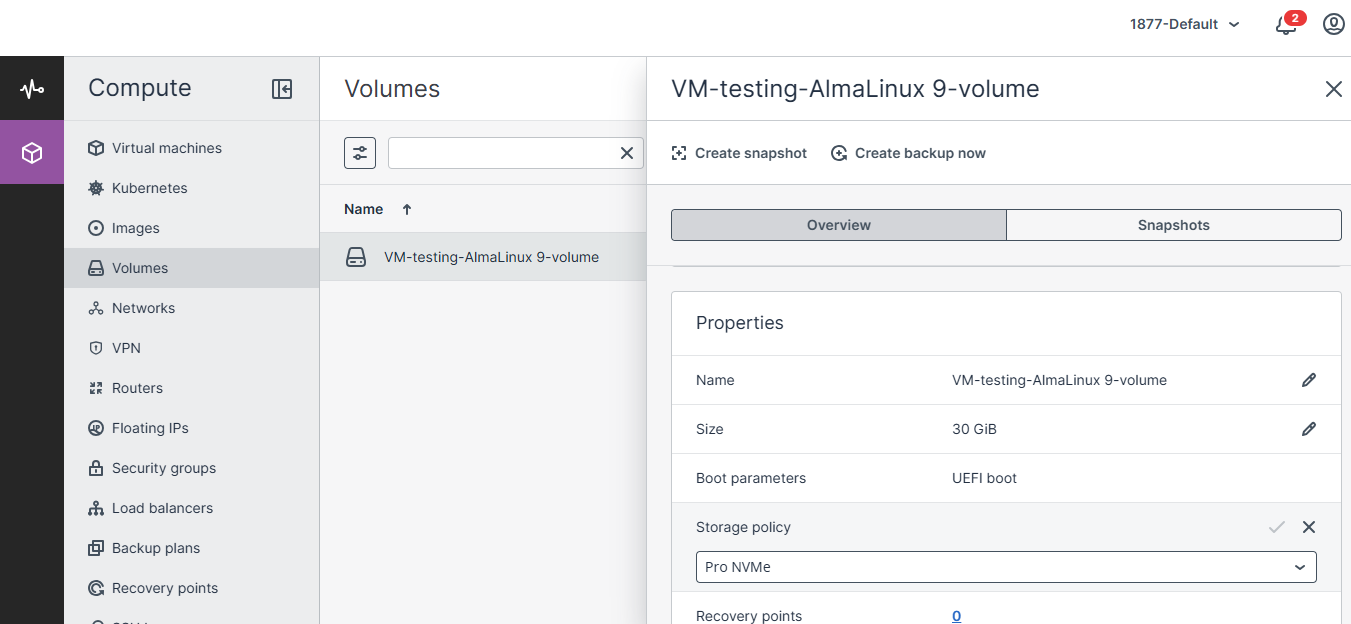
Step 3: Select Standard NVMe
From the storage policy drop-down menu, select:
Standard NVMe
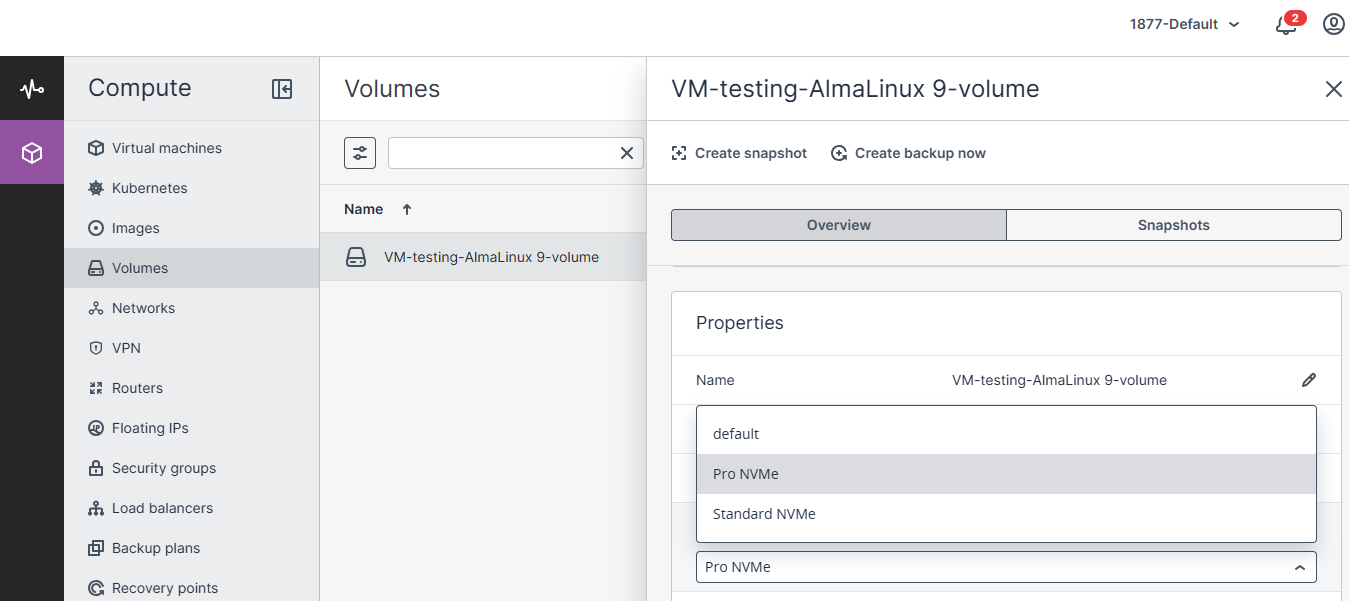
Step 4: Save the Changes
Click Save (✓) to apply the change.
The volume continues operating normally while the storage policy changes.
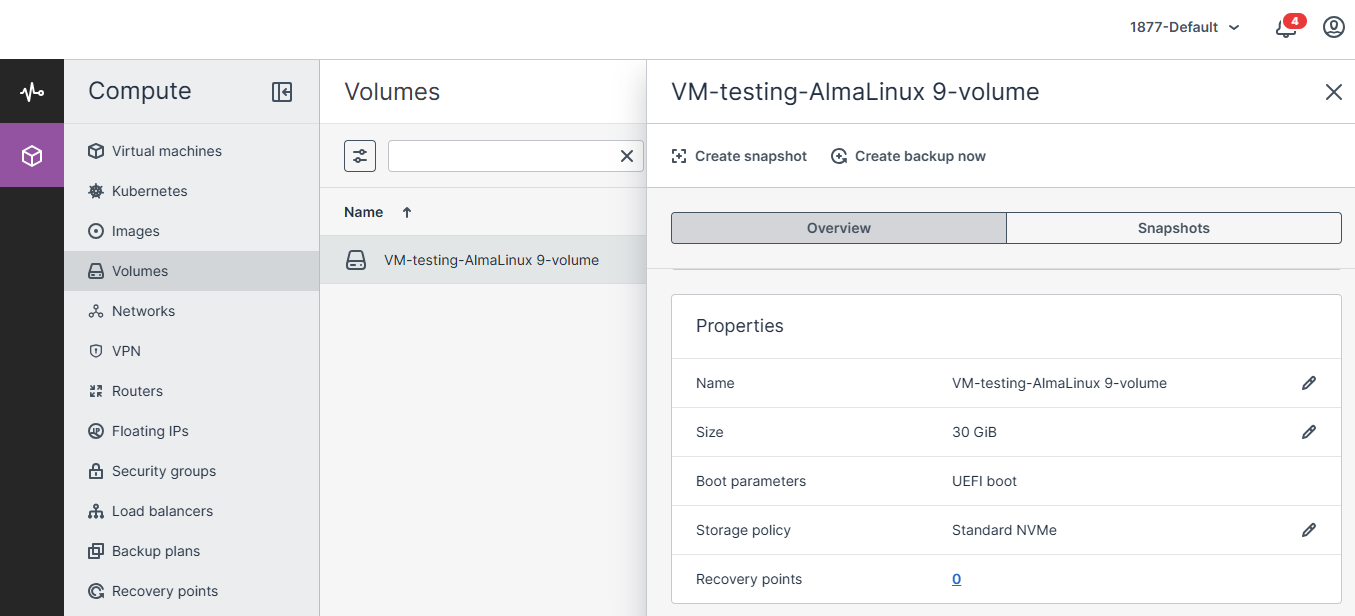
Performance after downgrade
After downgrading to Standard NVMe, the volume supports:
- Up to 25,000 IOPS
- Up to 1,000 MB/s throughput
- No data loss
- No VM restart required
Rules & Limitations
Supported
The following operations are supported:
- Live upgrade from Standard NVMe → Pro NVMe
- Live downgrade from Pro NVMe → Standard NVMe
- Storage policy changes while the volume is attached to a VM
- Immediate application of the selected storage tier
Not Supported
The following operations are not supported:
- Eco NVMe → Standard NVMe
- Eco NVMe → Pro NVMe
- Standard NVMe → Eco NVMe
- Pro NVMe → Eco NVMe
- Storage policy changes from the standard CMP Dashboard
- Partial volume storage policy changes
Important: Eco NVMe cannot be converted using a live storage policy change because it uses a different storage architecture. To move from Eco NVMe to another storage tier, a new volume must be created and the data must be migrated manually.
Troubleshooting
Storage Policy Option Is Not Available
If you cannot find the Storage Policy option in the standard CMP Dashboard, open the Advanced Panel for the selected region.
Storage policy changes are managed from the Advanced Panel and are not available from the standard CMP Dashboard.
Pro NVMe Is Not Available as an Upgrade Option
If Pro NVMe is not available when editing the storage policy, verify that the current volume is using Standard NVMe.
The supported live upgrade path is:
Standard NVMe
↓
Pro NVMe
Standard NVMe Is Not Available for Downgrade
If Standard NVMe is not available, verify that the current volume is using Pro NVMe.
The supported live downgrade path is:
Pro NVMe
↓
Standard NVMe
I Want to Change an Eco NVMe Volume
Eco NVMe does not support live conversion to Standard NVMe or Pro NVMe.
The supported approach is to:
- Create a new volume with the required storage tier.
- Migrate the data manually.
- Use the new volume for the workload.
The source documentation does not provide detailed data-migration commands, so they are not included in this KB.
Verification Checklist
After changing the storage tier, verify:
- The correct volume was selected.
- The Storage Policy was updated.
- The required storage tier is displayed.
- The volume remains attached to the VM.
- The VM remains operational.
- No reboot was required.
- The expected storage performance tier is applied.
Summary
CMP supports live storage tier changes for supported NVMe volumes.
The supported transitions are:
Standard NVMe
↓
Pro NVMe
and:
Pro NVMe
↓
Standard NVMe
Both operations can be performed while the volume remains attached to a running VM, without requiring a reboot or data migration.
Eco NVMe uses a different storage architecture and cannot be converted using a live storage policy change.
Conclusion
CMP provides flexible NVMe storage tiers that can be changed according to workload performance and cost requirements.
Standard NVMe can be upgraded to Pro NVMe for higher IOPS and throughput, while Pro NVMe can be downgraded to Standard NVMe when the additional performance is no longer required.
These supported storage policy changes are applied live without detaching the volume, restarting the VM, or causing downtime. Eco NVMe requires a different migration approach because it cannot be converted through a live storage policy change.
FAQ’s
Can I upgrade Standard NVMe to Pro NVMe without downtime?
Yes. Standard NVMe can be upgraded to Pro NVMe while the volume remains attached to a running VM. No reboot or downtime is required.
Can I downgrade Pro NVMe to Standard NVMe?
Yes. Pro NVMe can be downgraded to Standard NVMe without restarting the VM or detaching the volume.
Can I change an Eco NVMe volume to Pro NVMe?
No. Eco NVMe cannot be converted directly to Pro NVMe through a live storage policy change. A new volume must be created and the data migrated manually.
Is the storage policy option available in the standard CMP Dashboard?
No. Storage policy changes must be performed through the CMP Advanced Panel.
Do I need to detach the volume before changing its storage tier?
No. Supported storage tier changes can be performed while the volume remains attached to the VM.
Do I need to restart the VM after changing the storage tier?
No. A VM restart is not required for supported Standard NVMe and Pro NVMe tier changes.
What is the maximum performance of Pro NVMe?
Pro NVMe supports up to 50,000 IOPS and 2,000 MB/s throughput according to the source documentation.
What is the maximum performance of Standard NVMe?
Standard NVMe supports up to 25,000 IOPS and 1,000 MB/s throughput according to the source documentation.