Managing SSH Keys
SSH keys offer a secure and reliable way to access your Virtual Machines (VMs) over SSH. Instead of using passwords, SSH key authentication ensures that only users with the matching private key can log in. The Cloud Region Advanced Dashboard allows you to create, manage, and delete SSH public keys for your infrastructure.
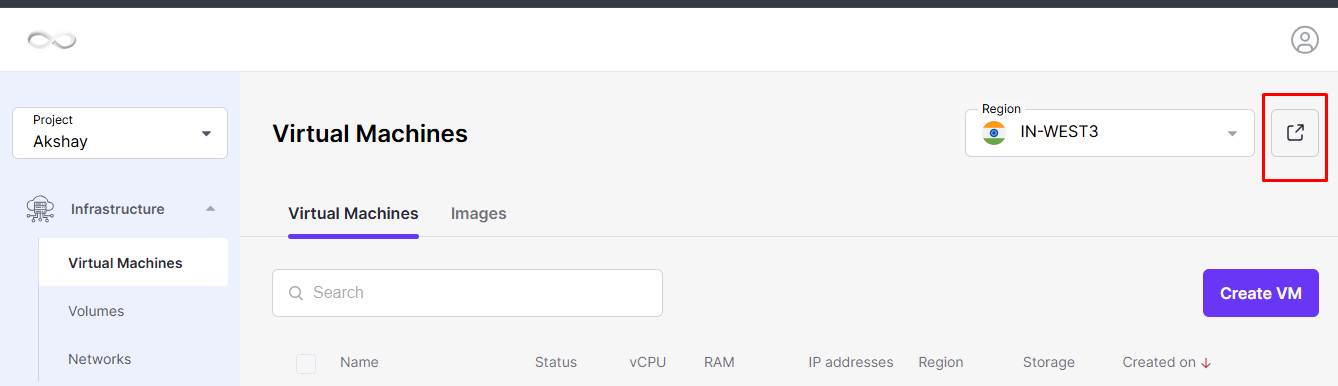
Click the arrow to open the Region Advanced Dashboard, where you can manage your SSH keys.
Creating and Adding an SSH Public Key
You can add an SSH public key either while creating a new virtual machine or by using the SSH Keys section in the Cloud Region Advanced Dashboard.
Method 1: Add an SSH Key During VM Creation
While creating a new virtual machine, choose SSH Key Authentication as the login method, as described in Section – How to Create Virtual Machines.
Method 2: Add an SSH Key from the Dashboard
Step 1: Generate an SSH Key Pair
On your local computer or client machine, generate a new SSH key pair by running the following command:
ssh-keygen -t rsaAfter executing the command, two files will be created:
- Private Key: Stored securely on your system (for example, /root/.ssh/id_rsa). Keep this file private and never share it.
- Public Key: Stored as /root/.ssh/id_rsa.pub. This key is uploaded to the CloudPe platform.
Step 2: Open the SSH Keys Page
Log in to the Cloud Region Advanced Dashboard.
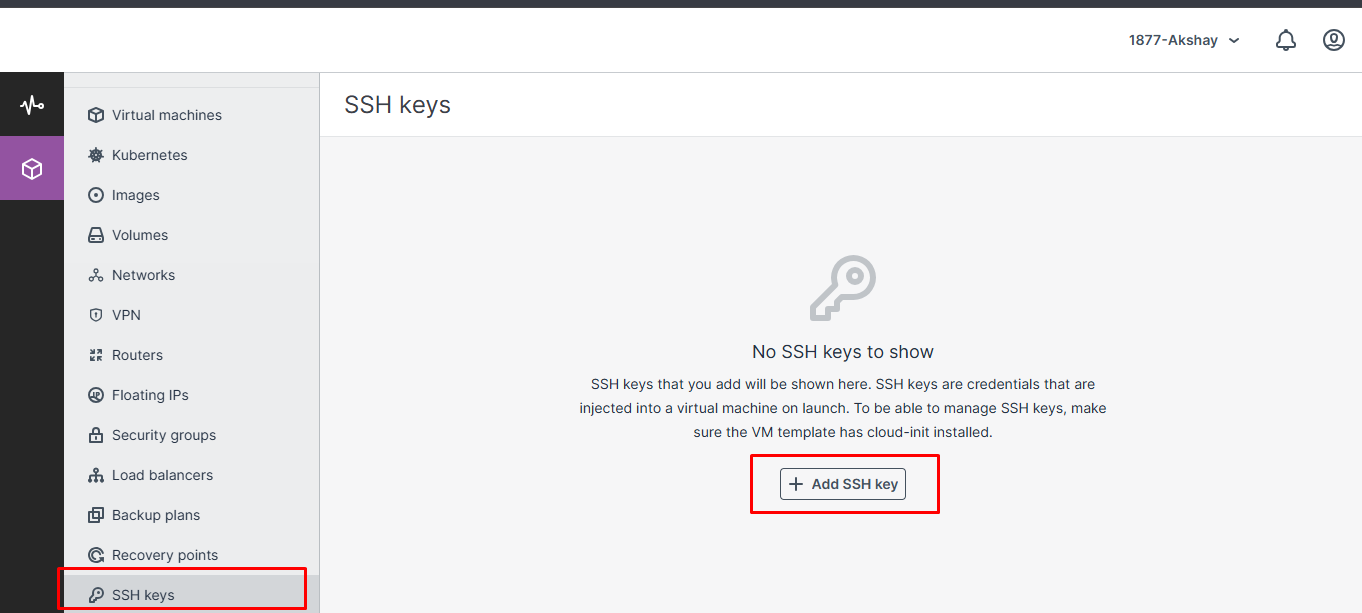
From the left navigation menu, open the SSH Keys section.
Step 3: Add a New SSH Key
Click the Add Key button.
Step 4: Enter the SSH Key Details
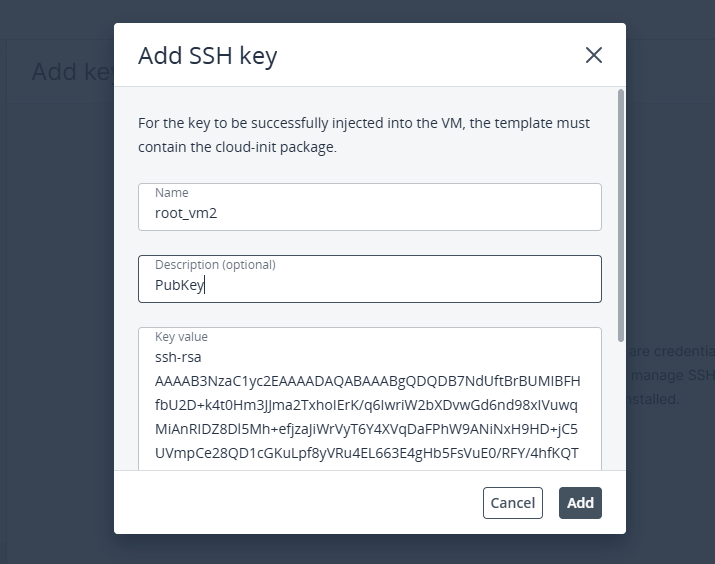
In the Add SSH Key window:
- Enter a meaningful Name for the SSH key.
- Open the public key file (/root/.ssh/id_rsa.pub) using any text editor.
- Copy the complete contents of the public key.
- Paste the copied key into the Key Value field.
- (Optional) Enter a Description to help identify the key. Avoid including confidential or personal information.
Step 5: Save the SSH Key
After verifying the information, click Save.
The SSH public key will now be available and can be selected when creating new virtual machines.
Deleting an SSH Public Key
If an SSH key is no longer required, you can remove it from the dashboard.
Step 1: Open the SSH Keys Section
Navigate to the SSH Keys page in the Cloud Region Advanced Dashboard.
Step 2: Select the SSH Key
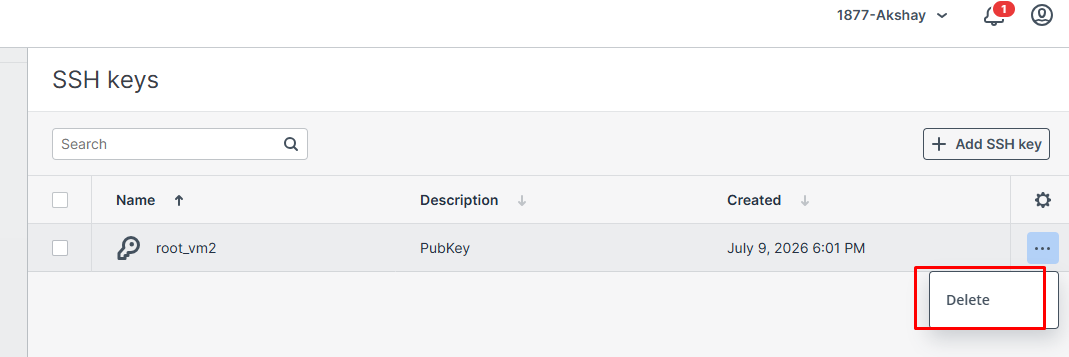
Locate the SSH key that you want to remove.
Click the Delete button corresponding to that key.
Step 3: Confirm the Deletion
A confirmation dialog will appear.
Click Confirm to permanently remove the SSH key from the dashboard.
Note: If the deleted key has already been injected into any VM, it will remain accessible within those VMs.