Resolving the “No Bootable Device” Error During Windows 11 Installation from an ISO
1. Overview
This guide explains how to resolve the “No Bootable Device” error that may occur when installing Windows 11 from an uploaded ISO file.
The issue is caused by missing virtual TPM (vTPM) support, which is required for Windows 11 installation.
2. Issue
When creating a new Virtual Machine (VM) and installing Windows 11 using an uploaded ISO, the VM may fail to boot and display the following message:
Booting from Hard Disk…
Boot failed: not a bootable disk
No bootable device.
3. Cause
This issue occurs because the Virtual Machine is not configured with vTPM (Virtual Trusted Platform Module).
Windows 11 requires hardware features such as:
- TPM 2.0
- Secure Boot support
If vTPM is not enabled, the installation may fail or the ISO may not be recognized as a bootable device.
4. Solution
Follow these steps to create and deploy the Windows 11 Virtual Machine.
Step 1: Select the Region
Log in to the Cloud dashboard and select the region where you want to deploy the Virtual Machine.
Step 2: Open the Advance Panel
Navigate to:
Advance Panel → Create Virtual Machine
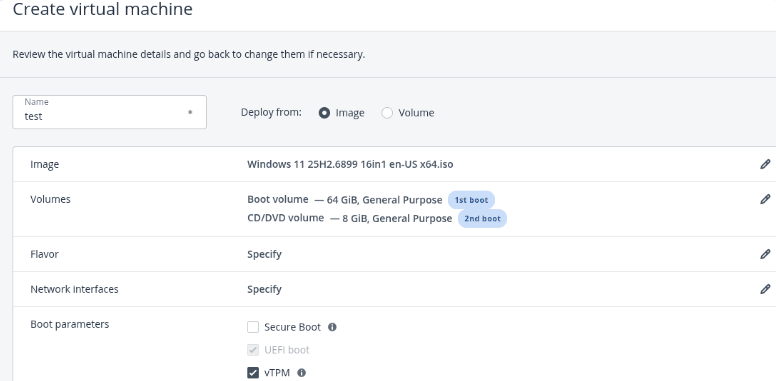
Step 3: Configure the Virtual Machine
Configure the following settings:
- Deploy From: Image
- Image: Select the uploaded Windows 11 ISO
- Volumes:
- Boot Volume
- CD/DVD Volume
- Flavor: Select the required CPU and RAM configuration.
- Network Interfaces: Assign the required network.
Step 4: Configure the Boot Settings
Enable the following options:
- UEFI Boot (automatically selected)
- vTPM (Virtual Trusted Platform Module)
Secure Boot is optional and may remain disabled if it is not required.
Step 5: Deploy the Virtual Machine
Click Deploy.
The Virtual Machine will boot from the Windows 11 installation media and display the Windows setup screen.
5. What Is vTPM?
vTPM (Virtual Trusted Platform Module) is a virtual implementation of the TPM 2.0 hardware module.
It provides cryptographic security functions for Virtual Machines and allows Windows 11 to detect the required TPM functionality during installation.
6. Why vTPM Must Be Enabled
Windows 11 requires TPM 2.0 for installation and secure operation.
If vTPM is not enabled:
- The Virtual Machine may not recognize the Windows ISO as a bootable device.
- The installation may fail with errors such as:
- No bootable device
- This PC can’t run Windows 11