Introduction:
In the Cantech Cloud portal, billing details can be accessed through the Billing or Account section of the dashboard. Once logged in, navigate to the billing menu to see invoices, payment history, and current usage charges. The portal typically provides options to download invoices, track payment status, and manage billing methods. This helps users monitor expenses and keep accounts updated directly from the cloud interface.
1. Log in to Cantech Cloud Dashboard
Use your account credentials to access your Cantech Cloud account.
2. Navigate to Billing History Section
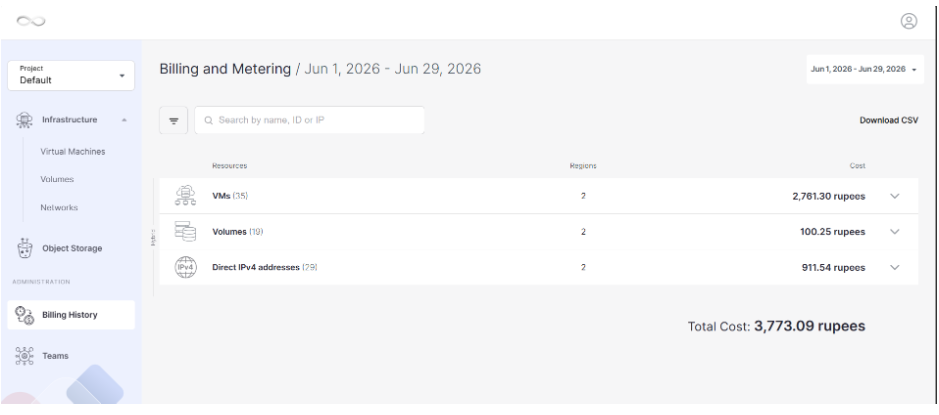
3. Select Billing Period
- Choose a month to view billing for that specific month.
- Or select a custom period to view charges for a specific date range.
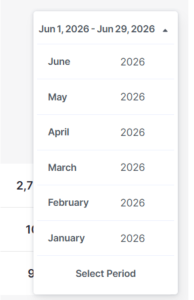
4. View Total Billing
After selecting the desired period, the dashboard will display your total billing for that time frame.
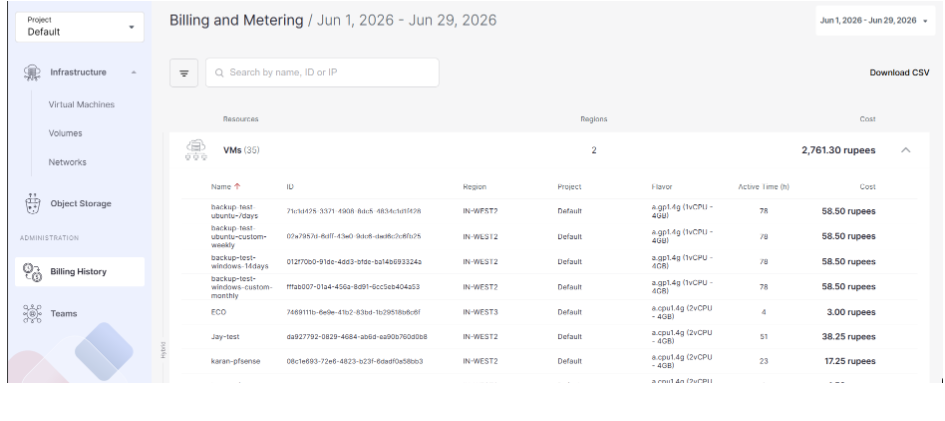
5. View Resource-wise Billing
To see detailed billing for each resource:
- Click on a resource to expand its details.
- You will see the breakdown of charges per resource.
Troubleshooting:
- Login error → Check credentials or reset password.
- Billing tab missing → Verify account role, clear browser cache.
- Wrong period shown → Re‑select month/date range, refresh page.
- Invoice not visible → Ensure billing cycle completed, contact support.
- Payment not updated → Wait for processing, confirm with bank.
- Resource billing not loading → Check resource activity, reload dashboard.
Important Notes
- Billing access may require Admin/Finance role permissions.
- Always select the correct billing period or custom range for accurate results.
- Invoices are generated after the billing cycle closes.
- Payment updates may take time to reflect in the dashboard.
- Resource‑wise billing shows charges only for active resources in the chosen period.
Conclusion:
By following these steps, users can easily access and review their billing information in the Cantech Cloud portal. The dashboard provides both a summary view of total charges and a detailed breakdown by resource, ensuring transparency and helping users track expenses effectively. This makes it simple to monitor usage, manage costs, and keep accounts up to date.
FAQ’s:
- Q: Where can I find my billing details? A: Log in to the Cantech Cloud dashboard and go to the Billing or Account section.
- Q: Can I view billing for a specific month? A: Yes, you can select a billing period (monthly or custom date range) to see charges.
- Q: How do I download invoices? A: In the billing section, use the Download Invoice option for the selected period.
- Q: Why don’t I see the billing tab? A: You may need Admin/Finance role permissions. Contact your account administrator.
- Q: Can I check billing per resource? A: Yes, expand the resource details to view a breakdown of charges.
- Q: How long does it take for payments to reflect? A: Payments may take some time to update; check again after processing or confirm with your bank.