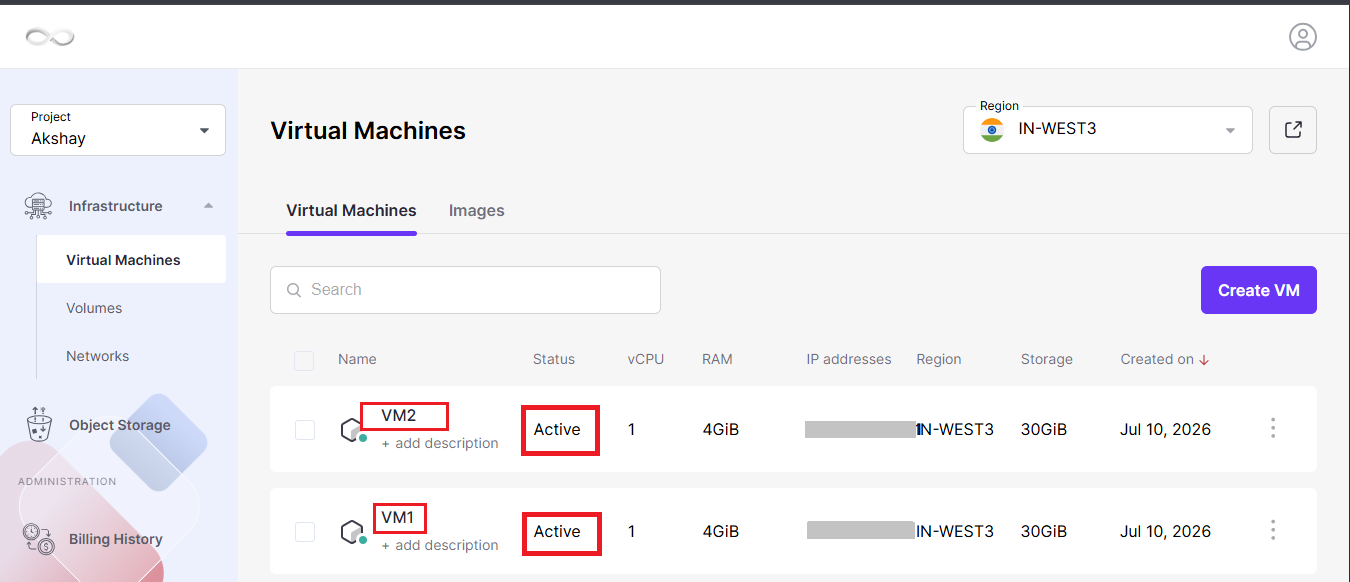
Step 1: Verify the VM Status in the Cloud Dashboard
- Log in to your Cloud Dashboard.
- Navigate to Virtual Machines.
- Locate the affected virtual machine.
- Check whether the VM is in the Running state.
- If the VM is stopped, start it.
- If it is already running but inaccessible, perform a reboot and wait for the VM to come back online.
Step 2: Connect Using the Console
- Open the Console from the Cloud Dashboard.
- Check whether the console opens successfully.
- If the console is accessible, the operating system is most likely running.
- If the console opens but responds very slowly or does not accept commands:
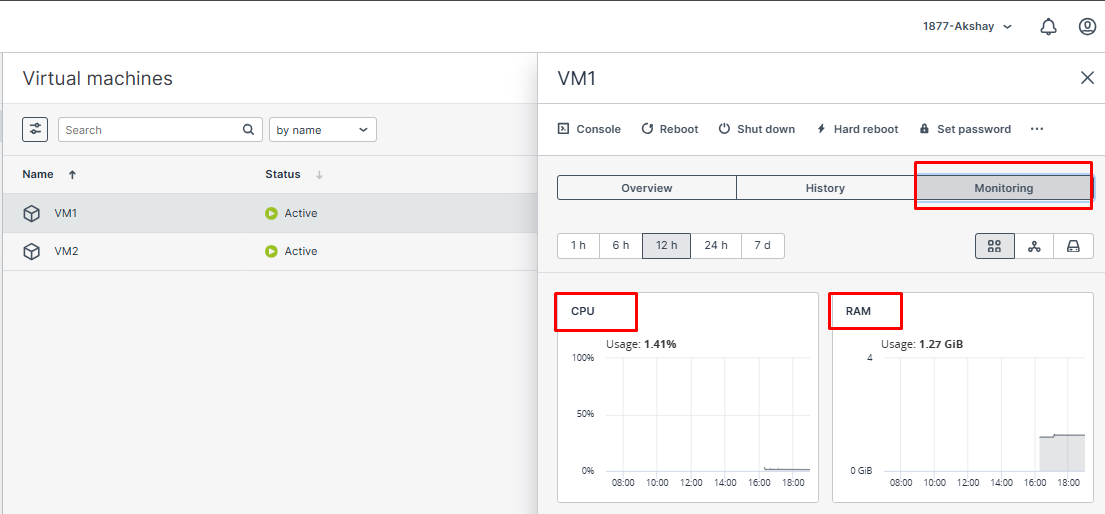
- Open the CMP Advanced Panel.
- Review the CPU and RAM utilization of the VPS.
- If CPU or memory usage is unusually high:
- Reboot the VPS.
- Wait a few minutes and try accessing the console again.
- If the console does not load or remains completely unresponsive, escalate the issue to the support team.
Step 3: Validate Network Connectivity
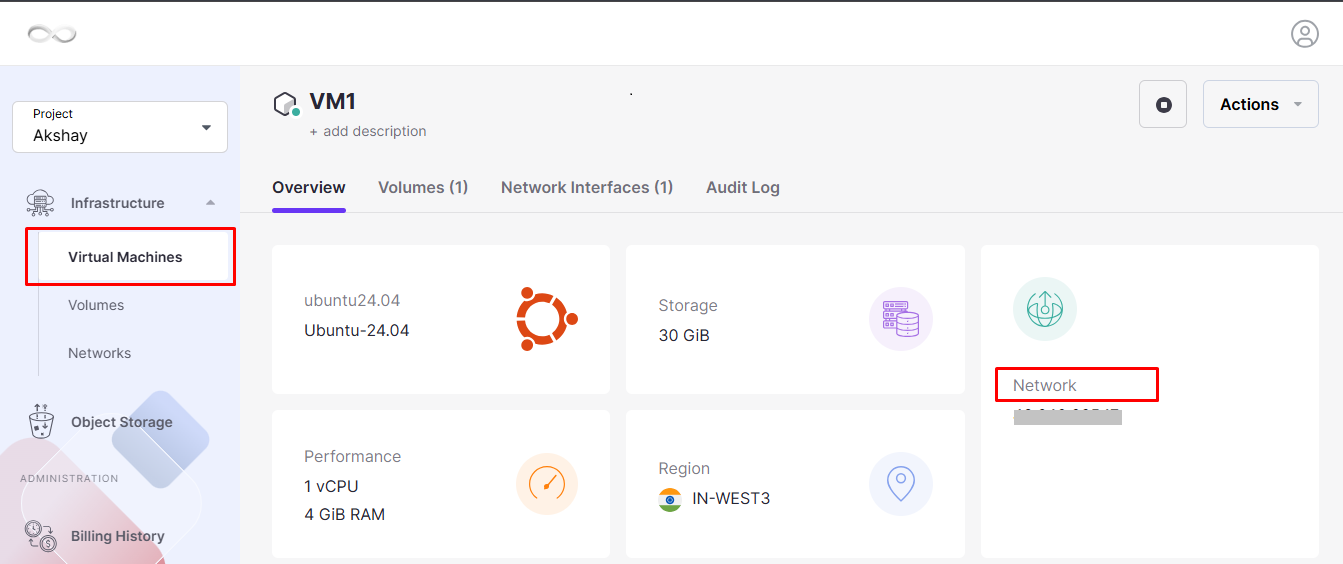
- Confirm that the VM has a Public IP Address assigned if remote access is required.
- From your local computer, test network connectivity by pinging the VM’s public IP.
Bash
ping <Public-IP>- If the VM does not respond to ping even though a public IP is attached, contact the support team for further investigation.
- Verify that the required Security Group or firewall rules allow inbound traffic.
- Ensure that the necessary ports are open and listening.
Step 4: Check the Operating System Firewall
A firewall configured inside the VM may block incoming connections.
Ubuntu/Debian
Bash
sudo ufw statusAlmaLinux/CentOS/RHEL
Bash
sudo firewall-cmd –list-all- Review the active firewall rules.
- Confirm that the SSH port (or any required service port) is allowed.
- If necessary, temporarily disable or adjust the firewall rules to verify whether the firewall is causing the connectivity issue.
Step 5: Verify the SSH Service
If the VM is accessible through the console but SSH connections fail, verify that the SSH daemon is running correctly.
Check SSH Service Status
Bash
sudo systemctl status sshdor on Ubuntu:
Bash
sudo systemctl status sshRestart the SSH Service (if required)
Bash
sudo systemctl restart sshdor
Bash
sudo systemctl restart sshConfirm SSH Is Listening on Port 22
Bash
ss -tlnp | grep 22- If output is displayed, SSH is listening normally.
- If no output is returned, SSH is not listening on the expected port.
Review the SSH configuration file for incorrect settings.
Bash
sudo nano /etc/ssh/sshd_configAfter making changes, restart the SSH service.
Step 6: Check Disk Usage
A filesystem that is completely full can prevent services from functioning correctly and may make the VM inaccessible.
Run the following command:
Bash
df -hReview the output carefully.
- If the root (/) partition is close to or at 100% usage, free up disk space by deleting unnecessary files, clearing logs, or expanding the disk if required.
- After reclaiming space, restart any affected services or reboot the VM if necessary.