1. Overview
MobaXterm is an SSH client for Windows that allows you to securely connect to and manage a Virtual Machine (VM) from a remote system.
This guide explains how to connect to a VM using SSH with MobaXterm.
2. Prerequisites
Before connecting to the VM, ensure you have:
- The VM’s IP address or hostname.
- A valid username (such as root or another user with SSH access).
- The SSH password.
- MobaXterm installed on your Windows computer.
3. Connect to the Virtual Machine
Step 1: Open MobaXterm
Launch MobaXterm on your Windows computer.
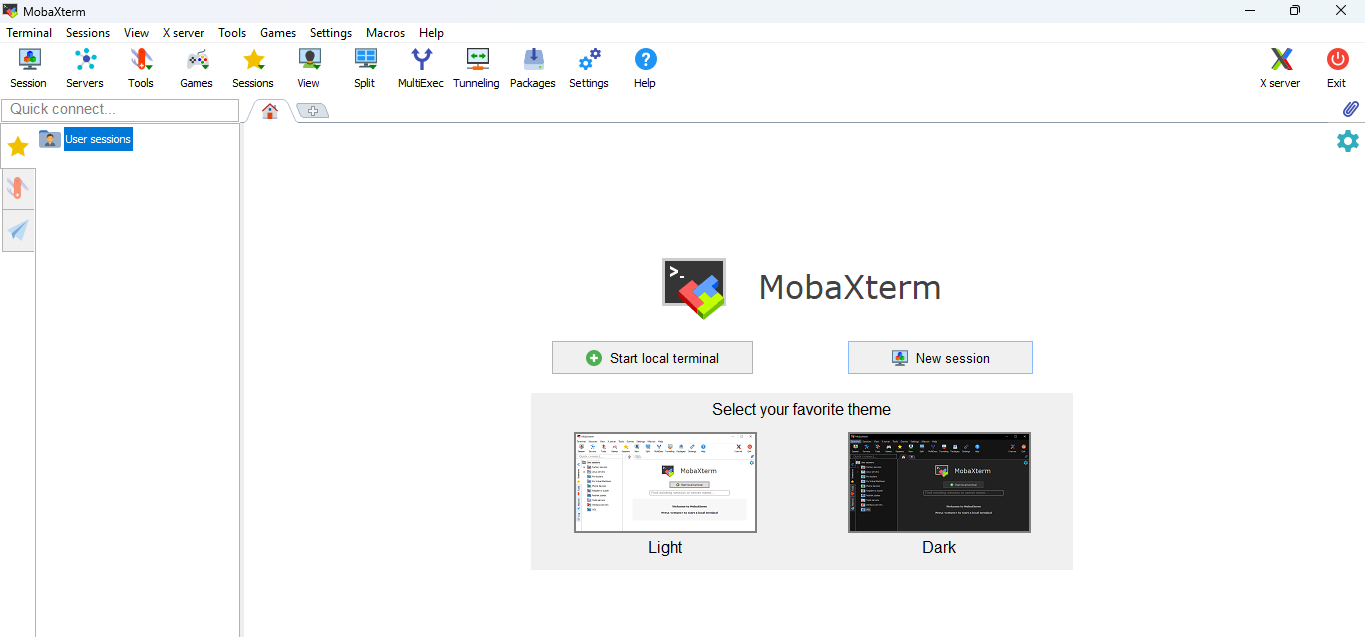
Step 2: Create a New Session
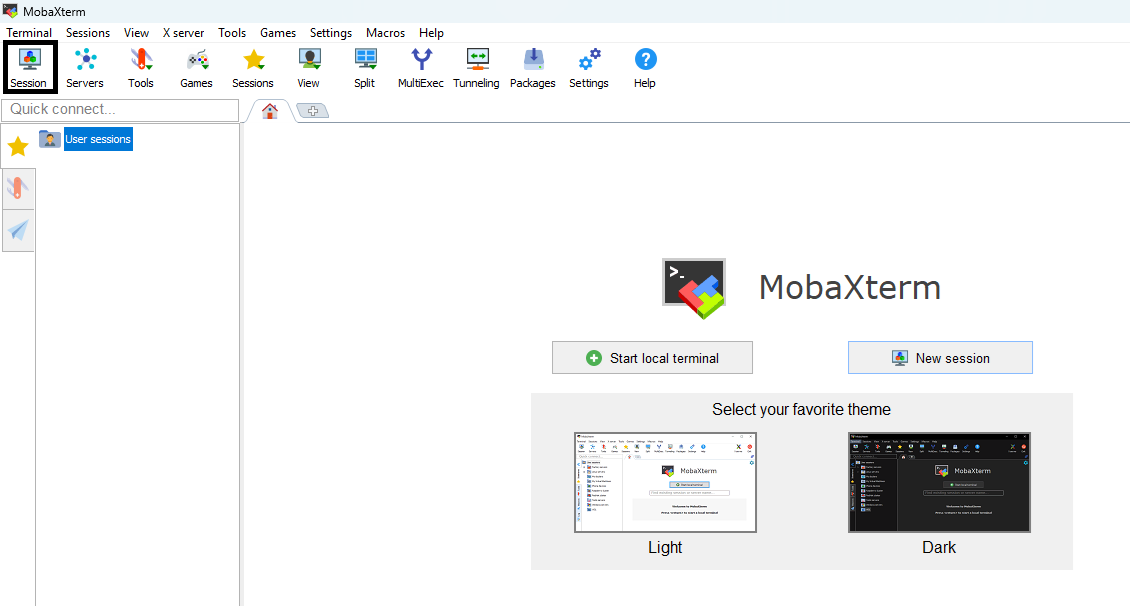
Click the Session button in the upper-left corner of the application.
Step 3: Select the Session Type
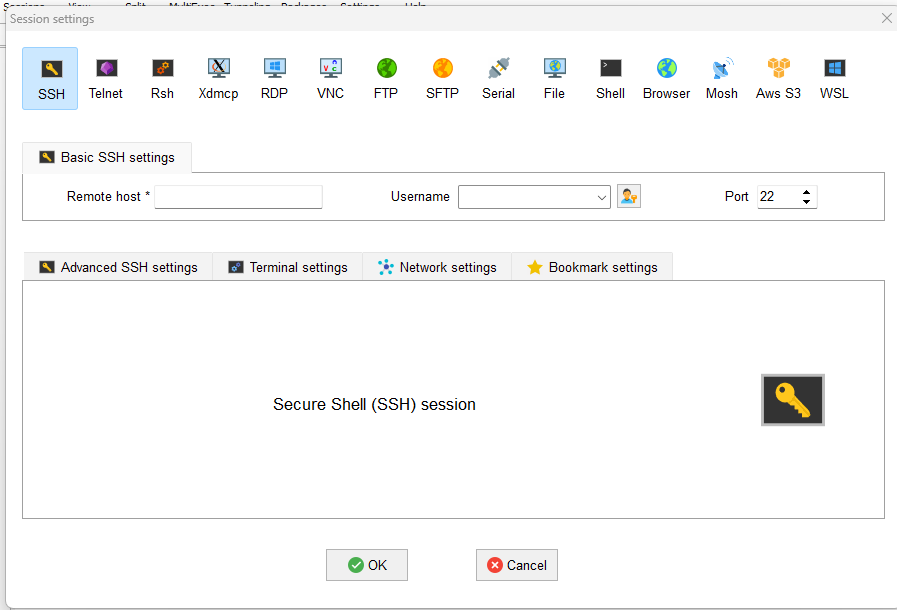
Choose SSH from the available session types.
Step 4: Enter the Connection Details
- In the Remote host field, enter the VM’s IP address or hostname.
- Leave the port set to 22, unless your server uses a different SSH port.
- Select Specify username and enter the appropriate username (for example, root or ubuntu).
- Click OK.
MobaXterm will prompt you to enter the SSH password.
After entering the correct password, the SSH session will be established and you will be connected to the virtual machine.