1. Overview
This guide explains how to delete an existing Virtual Machine (VM) and create a new VM using the same IP address.
2. Delete the Existing Virtual Machine
- Log in to the Cloud dashboard.
- Navigate to Infrastructure → Virtual Machines.
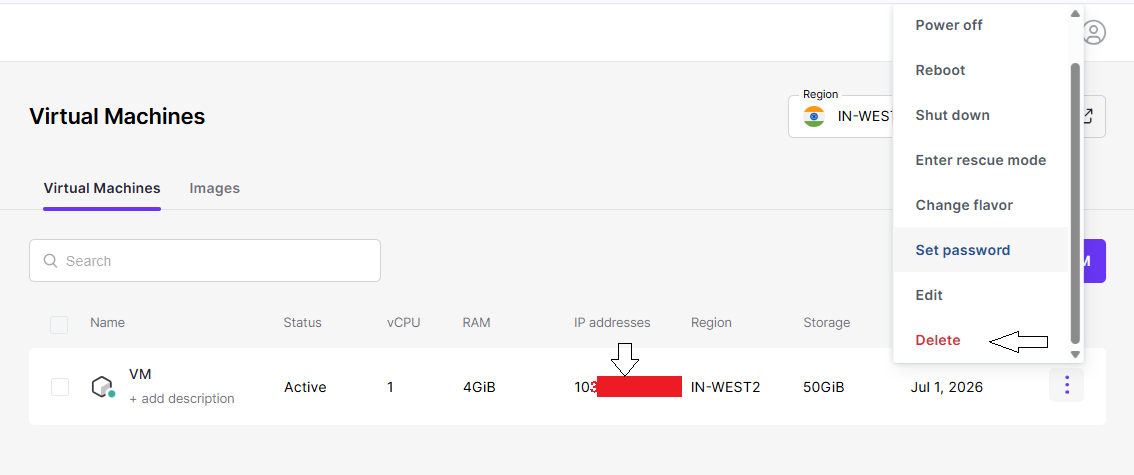
- Locate the VM that is using the IP address you want to reuse.
- Open the Actions menu (⋯).
- Click Delete.
3. Create a New Virtual Machine
- Start the process to create a new Virtual Machine.
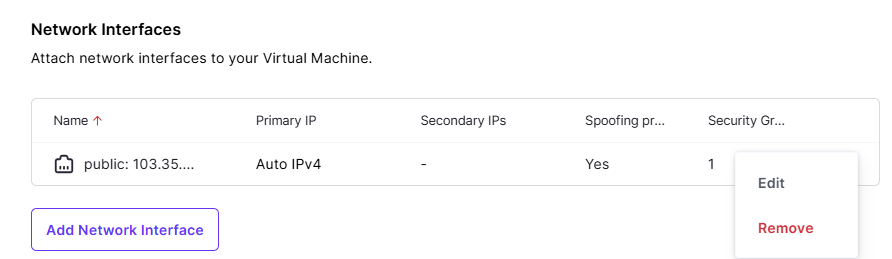
- During the configuration, go to Network Interfaces.
- Click Edit.
4. Assign the Existing IP Address
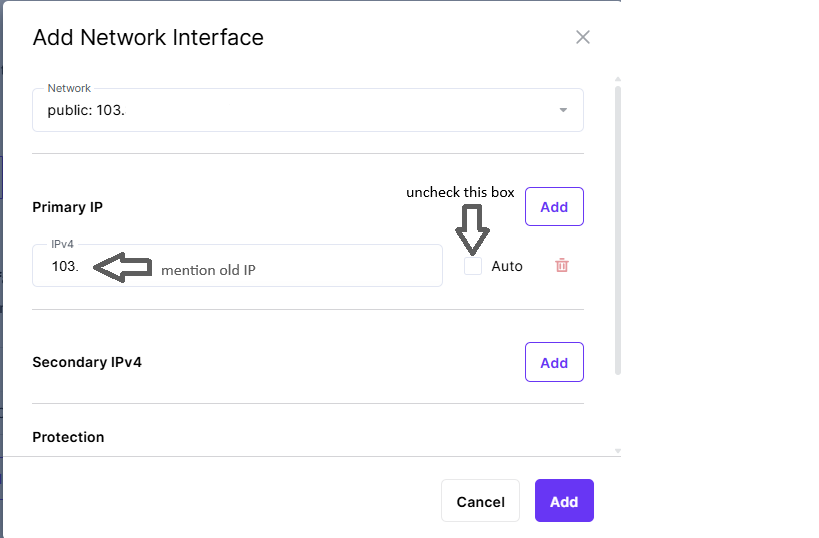
In the Edit Network window:
- Clear the Auto option.
- Enter the IP address of the deleted VM in the Primary IP field.
- Click Save.
5. Result
The new Virtual Machine will be created using the same IP address that was assigned to the previous VM.