1. Overview
This guide explains how to set or reset the login password for a Virtual Machine (VM) using the Cloud Advance panel.
You can use this feature to:
- Set the initial password for a newly created VM.
- Reset a forgotten password.
- Update the existing password for security purposes.
2. Prerequisites
Before setting or resetting the password, ensure that:
- The Virtual Machine is in the Running state.
Note: The password cannot be set or reset if the VM is powered off. Start the VM before proceeding.
3. Set the VM Password
Step 1: Open the Virtual Machine
- Log in to the Cloud Advance panel.
- From the left navigation menu, select Virtual Machines.
- Click the name of the Virtual Machine.
- Click Set Password.
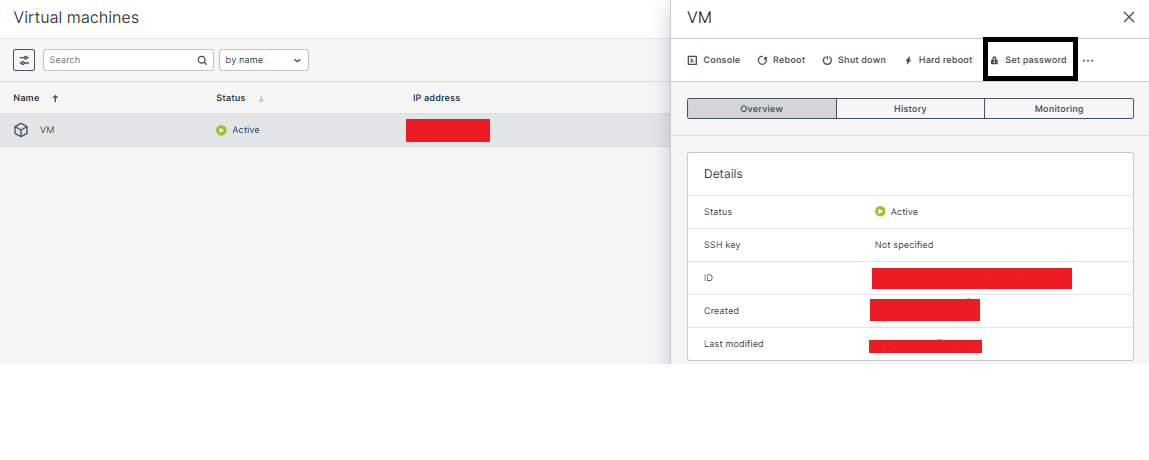 Note: If the Set Password option is unavailable or disabled, the QEMU Guest Agent may not be installed or running.
4. QEMU Guest Agent Requirement
The Set Password feature requires the QEMU Guest Agent to be installed and running inside the Virtual Machine.
This feature works automatically on standard operating system images such as:
- Ubuntu
- Debian
- CentOS
It may not be available on Virtual Machines created from custom ISO images.
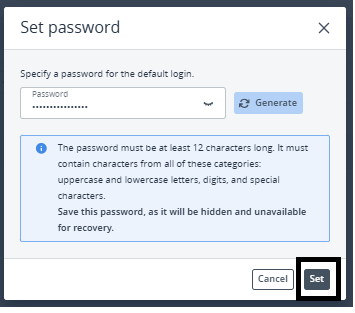
5. Enter or Generate a Password
You can choose either of the following options:
- Click Generate Password to automatically create a strong password.
- Enter a new password manually.
6. Apply the Password
- Click Set.
- Wait for the confirmation message indicating that the password has been updated successfully.
7. Default User Accounts
The password is applied to the default operating system user.
Operating System Default User
Ubuntu root
Debian root
CentOS / Rocky Linux root
Windows Administrator
8. Password Requirements
The new password must meet the following requirements:
- Minimum length of 12–16 characters.
- Include uppercase letters, lowercase letters, numbers, and special characters (such as @, #, $).
- Avoid common or easily guessed words.
- Do not reuse previously used passwords.
Following these guidelines helps improve the security of your Virtual Machine.
9. Verify the New Password
After setting or resetting the password, verify that you can log in successfully.
Windows Virtual Machines
Note: Before connecting through RDP, ensure that port 3389 is allowed in the Cloud Security Group. If port 3389 is blocked, the RDP connection will fail even if the password has been updated successfully.
- Open a new Remote Desktop (RDP) connection.
- Connect to the VM using its IP address.
- Enter the Administrator username and the new password.
- Verify that the login is successful.
Linux Virtual Machines
Note: Before connecting through SSH, ensure that port 22 is allowed in the Cloud Security Group. If port 22 is blocked, the SSH connection will fail even if the password has been updated successfully.
Open a terminal and connect to the VM using SSH:
ssh username@<VM_IP>Enter the username and the new password to verify that the login is successful.