1. Overview
This guide explains how to set or reset the password of a newly created or existing Linux Virtual Machine (VM).
2. Set or Reset the Password
Step 1: Log In to the Cloud Dashboard
Sign in to the Cloud dashboard using your account credentials.
Step 2: Select the Virtual Machine
Navigate to the list of Virtual Machines and select the Linux VM for which you want to set or reset the password.
Step 3: Open the Console
Click the Console drop-down menu.
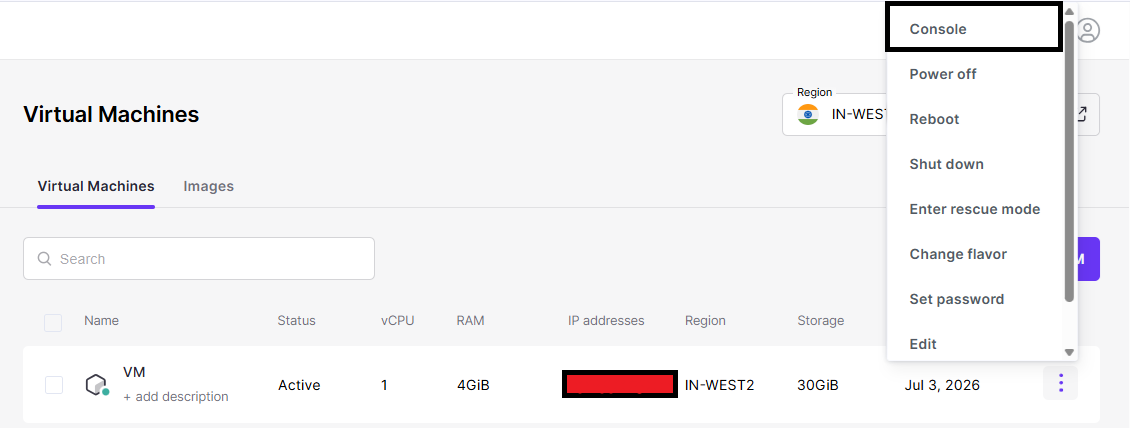
Step 4: Log In to the Virtual Machine
Log in to the Virtual Machine using the existing password.
If you do not have a password, refer to the appropriate article to set the initial password before continuing.
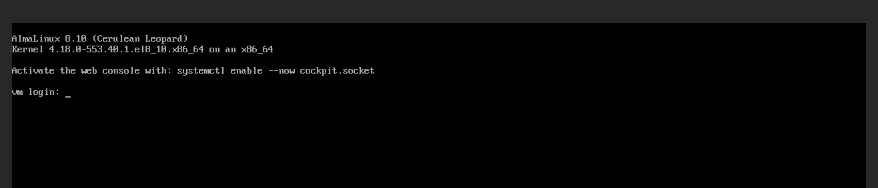
Step 5: Change the Password
Run the following command to set a new password:
passwd <username>For most Linux images, the default user is root.
Example:
passwd rootAfter entering and confirming the new password, use the updated credentials for future logins.

3. Password Requirements
When creating a new password, follow these guidelines:
- Minimum length of 12–16 characters.
- Include uppercase letters, lowercase letters, numbers, and special characters (such as @, #, $).
- Avoid common or easily guessed words.
- Do not reuse previously used passwords.
Following these guidelines helps improve the security of your Virtual Machine and reduces the risk of unauthorized access.